ALGO Proxy Setup
To best meet customer needs, ALGO Proxy provides proxy support software solutions with high flexibility and efficiency, designed to suit specific use cases.
Note!
The Web App interface may differ slightly from the guide but will not be significantly different.
ALGO Proxy Tools
ALGO Proxy understands that supporting users is the most important thing. That’s why we always strive to improve and create tools to give you a better experience.
ALGO Proxy Extension (Chrome)
- An extension developed by ALGO Proxy to help use Proxy on Chrome.
You must configure it on the homepage first to use this extension
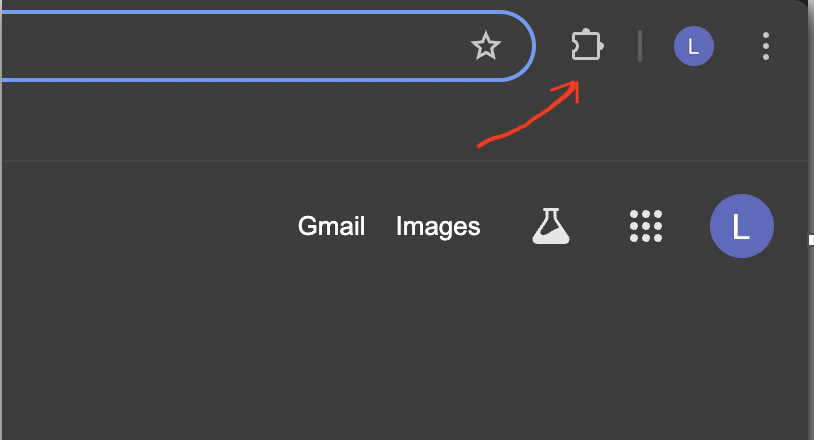
After installing, an icon shaped like a puzzle piece will appear on the right side of your URL bar. Click it.
Click ALGO Proxy.
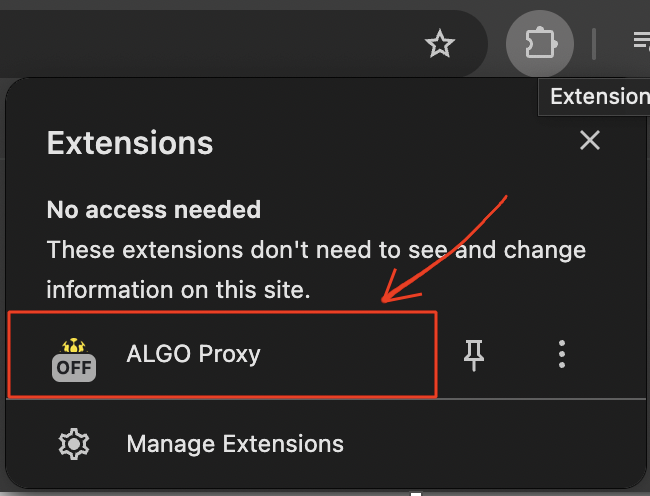
The extension interface will appear.
Using it is very simple — just enter the Proxy Token and click
Connect ➔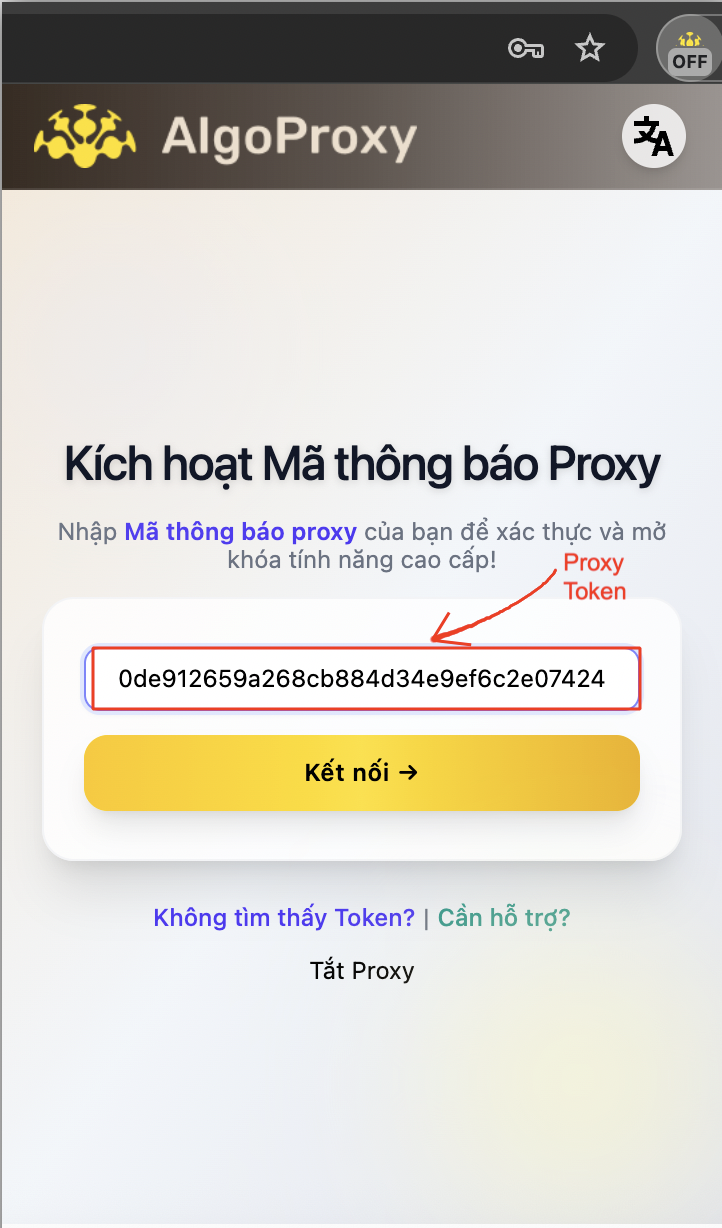
Don’t know how to get a Proxy Token?
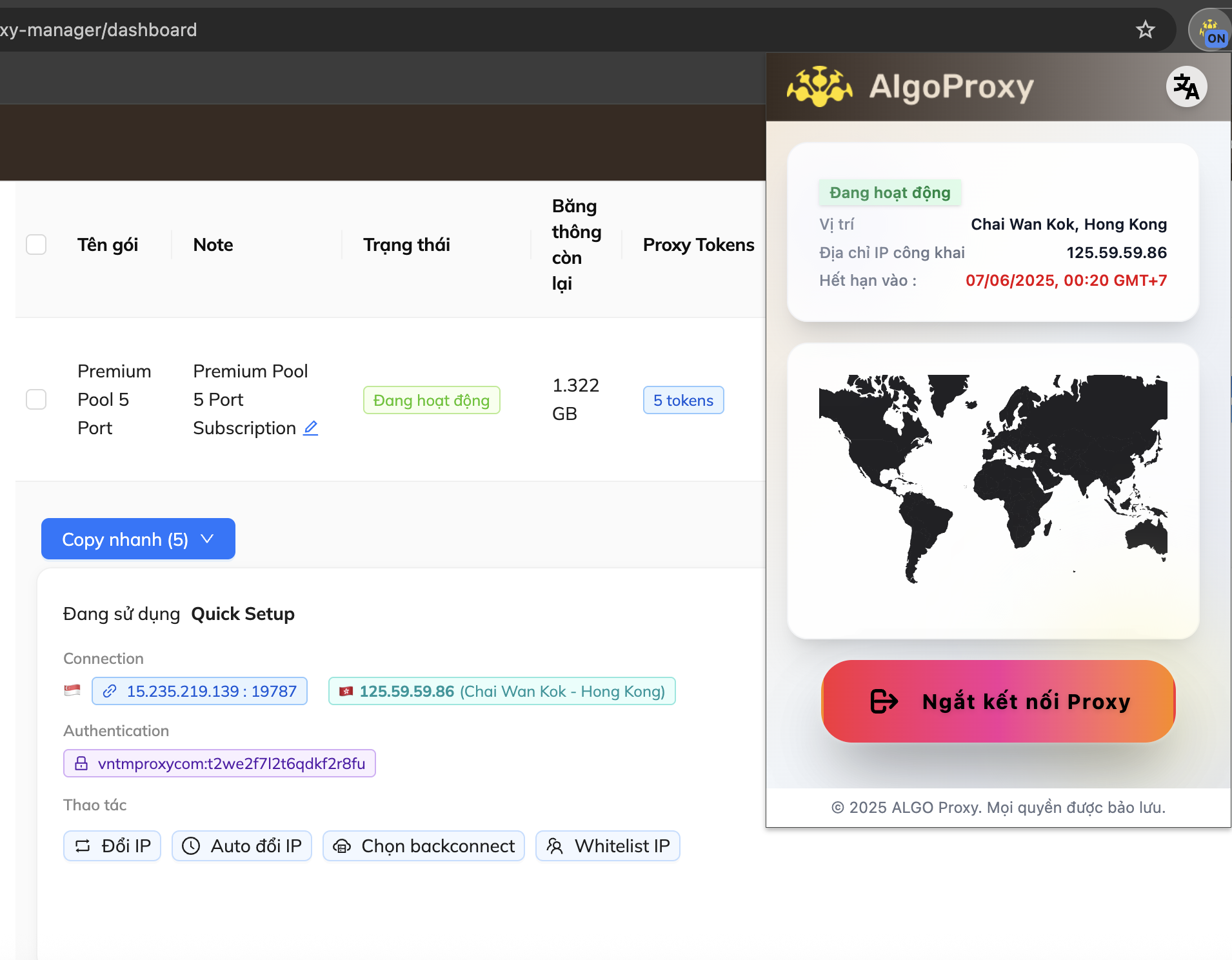
- If you see result like this, the connection is established successfully
Whole PC (Windows)
Method 1: Press the Windows key on your keyboard.
- Type “proxy settings” then press Enter.
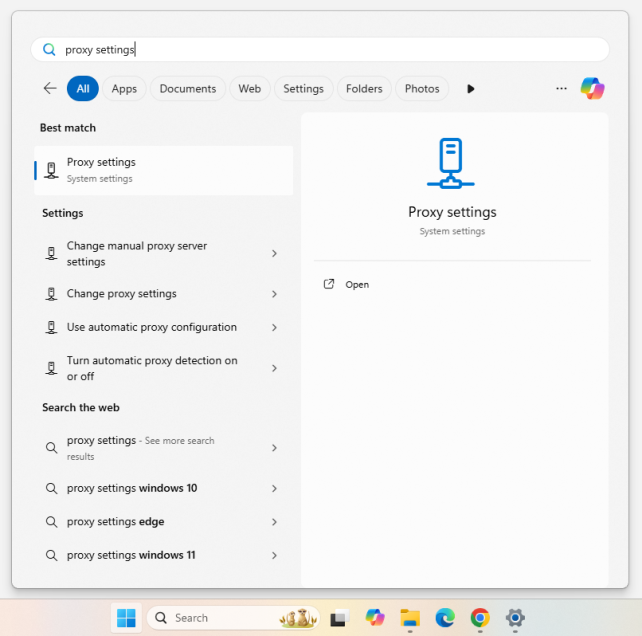
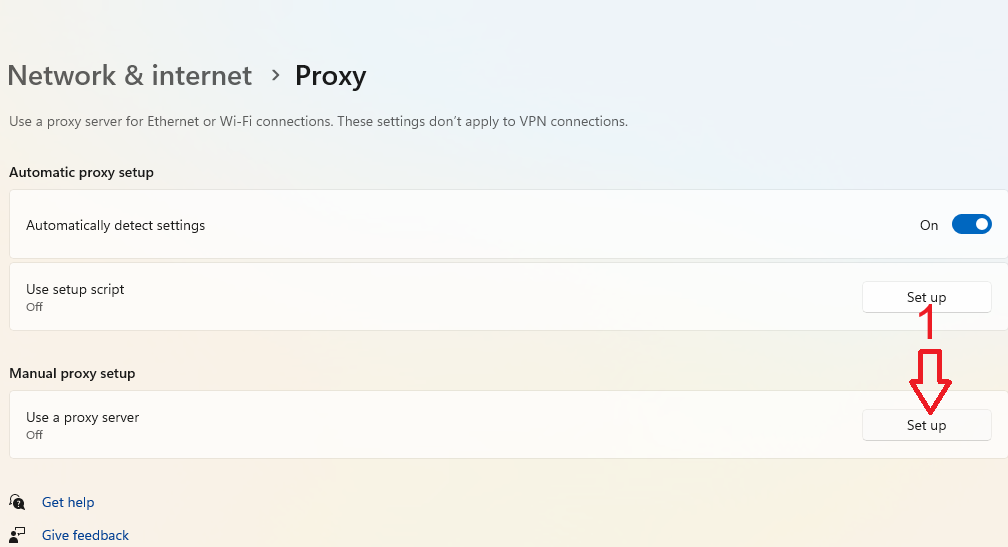
- Under Use a proxy server, click Set up.
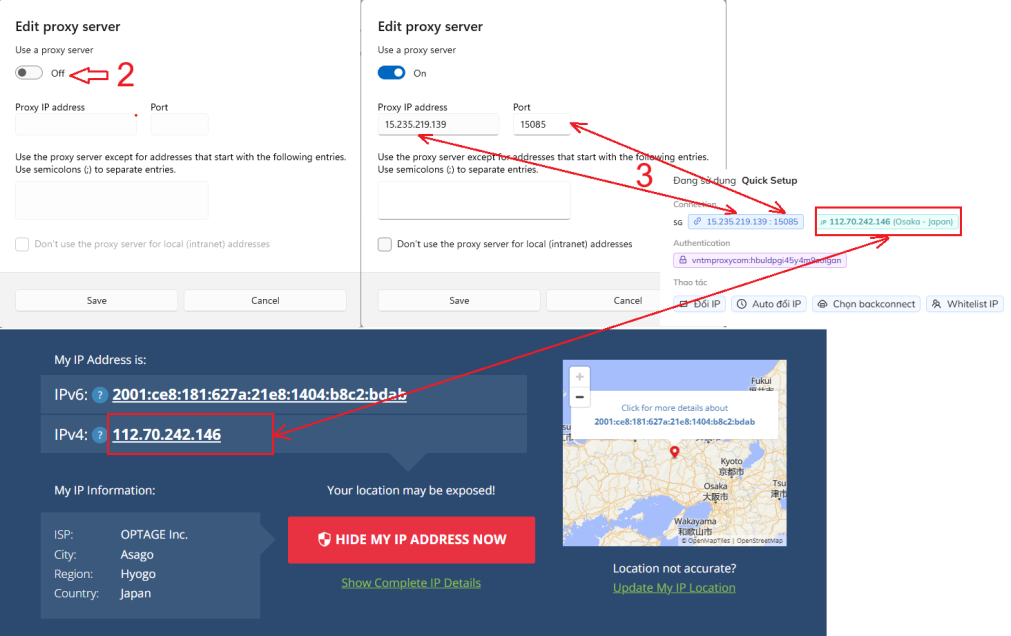
- In Use a proxy server under Edit proxy server, switch from Off to On.
- Enter the proxy info in the corresponding fields and click Save.
- Open your web browser and visit https://whatismyipaddress.com/ to check the result. If your IP matches the IP on our website, it’s successful.
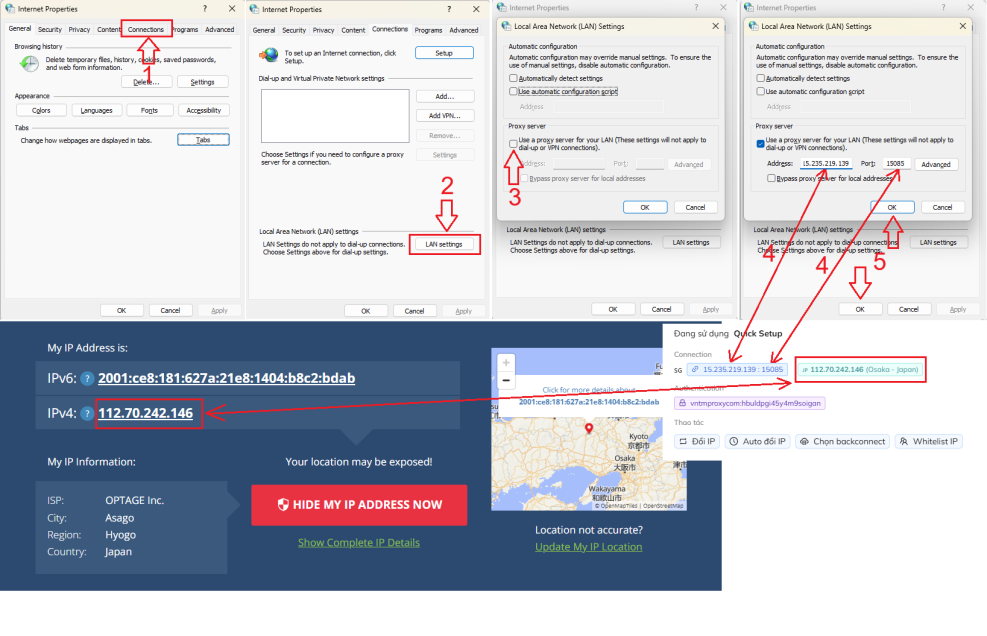
Method 2: Press the Windows key on your keyboard.
- Type “internet options” then press Enter.
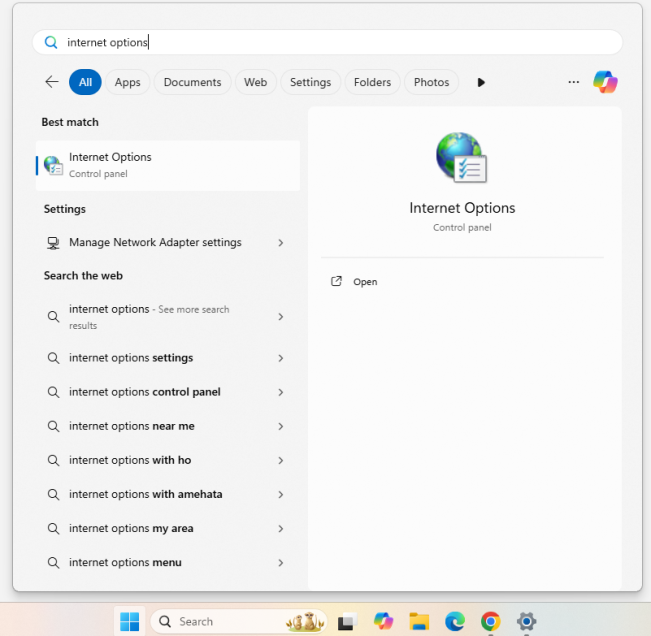
- When the Internet Options window appears, select the Connections tab.
- Continue to LAN settings.
- Check Use a proxy server for your LAN.
- Enter the proxy info in the corresponding fields, then click OK twice.
- Open your web browser and visit https://whatismyipaddress.com/ to check the result. If your IP matches the IP on our website, it’s successful.
Android, Emulators
Set up a proxy for Android emulators or Android phones on PC.
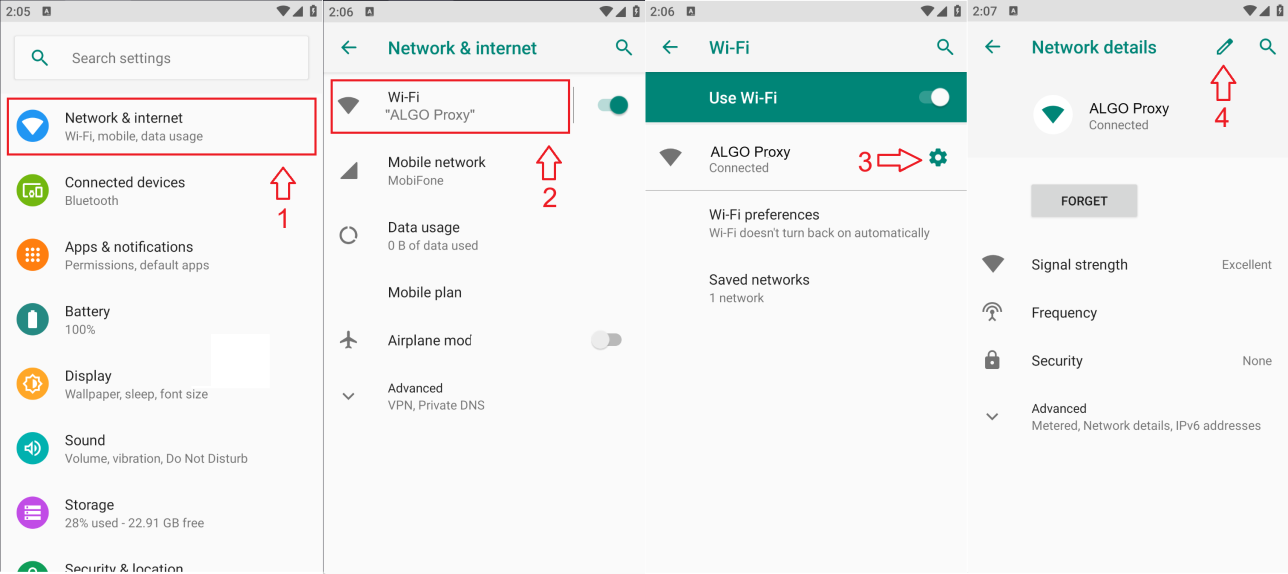
- Open Settings .
- Select Network and Internet.
- Select the Wi-Fi network you’re using.
- Click the settings icon on the right side of the connected Wi-Fi.
- Click the pencil icon
.
- Switch from None to Manual.
- Enter the proxy info in the corresponding fields and click Save.
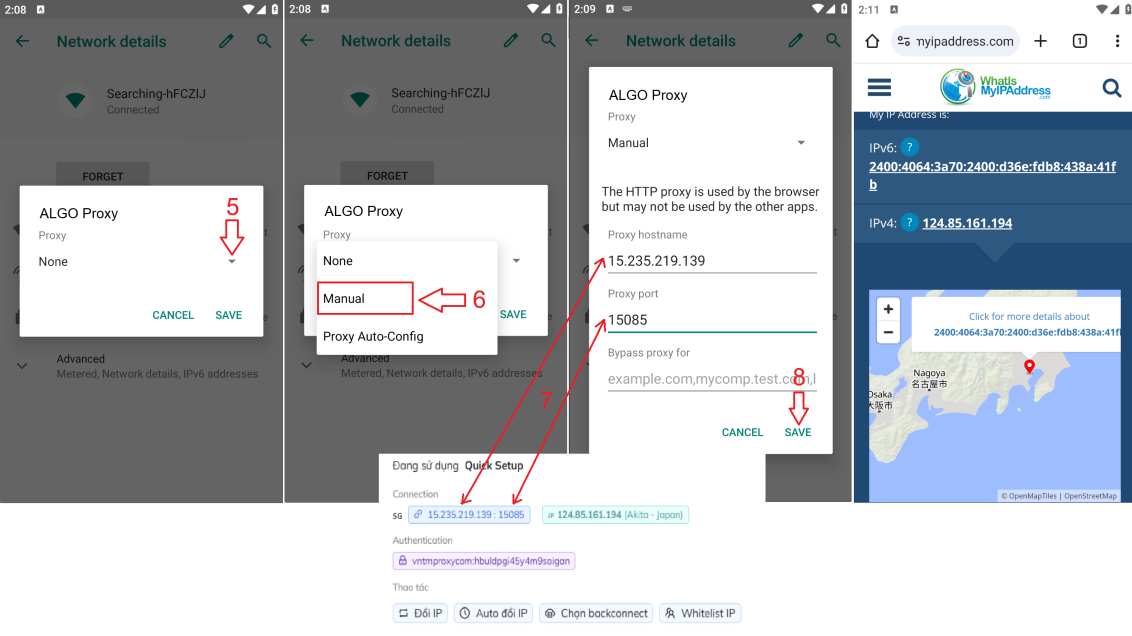
- Visit https://whatismyipaddress.com/ to check the result. If your IP matches the IP on our website, it’s successful.
IOS
Set up a proxy for iPhones or iPads.
- Open Settings ⇒ Wi-Fi ⇒ Select the Wi-Fi you’re connected to.
- Tap the blue checkmark icon next to the connected Wi-Fi.
- Select Configure Proxy (PROXY HTTP) ⇒ Choose Manual.
- Enable Authentication (Always enable authentication).
- Enter the Proxy server details and login info.
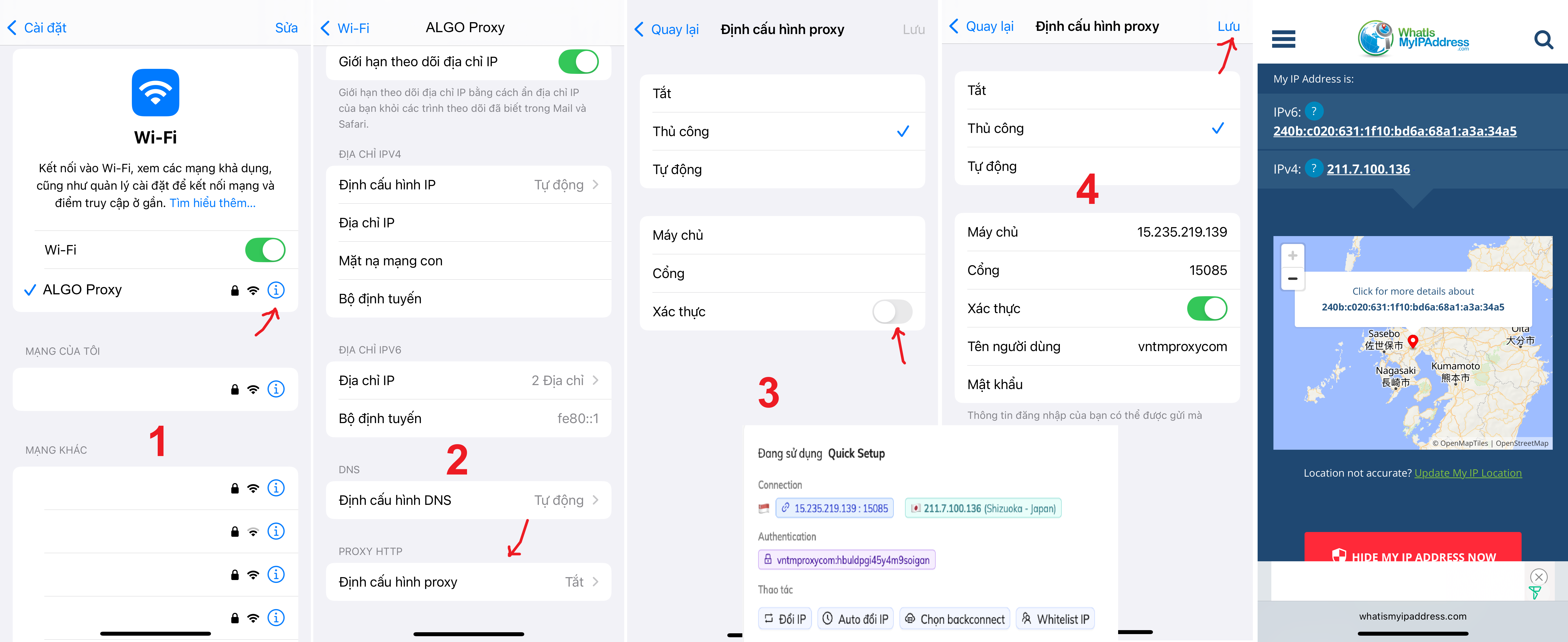
- Visit https://whatismyipaddress.com/ to check the result. If your IP matches the IP on our website, it’s successful.
Third-party tools
To meet the need for using proxies combined with supporting tools, ALGO Proxy has optimized integration capabilities with third-party software. We understand this is essential to provide a complete solution for customers.
SSTap
Used to set up a system-wide proxy, applying to all apps and browsers.
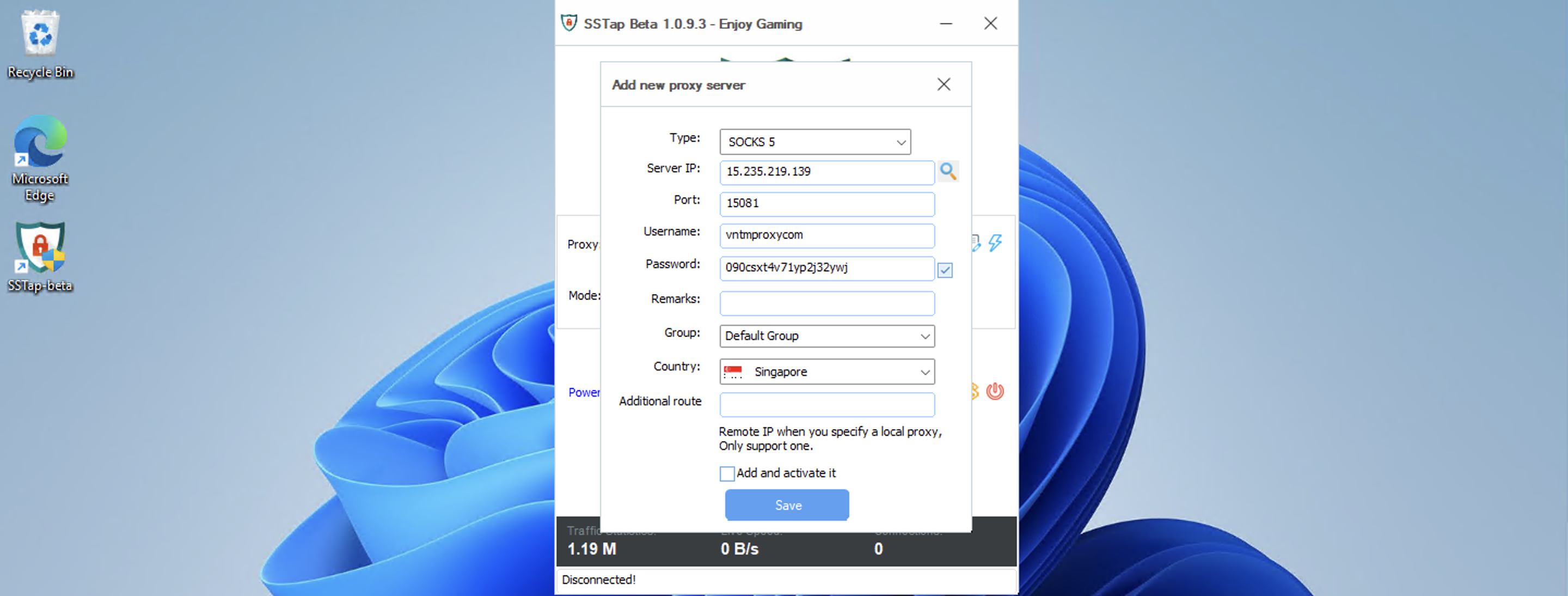
After installation, open the software. Click the + icon ⇒ Add SOCKS5 Proxy.
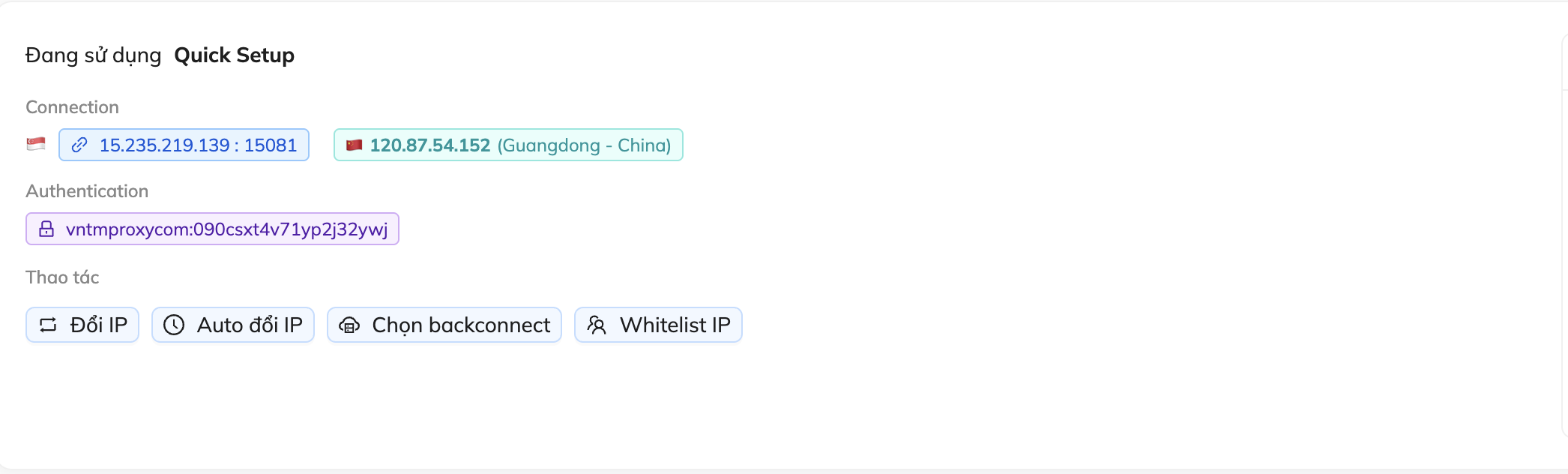
Enter the proxy info as shown below, then click Save.
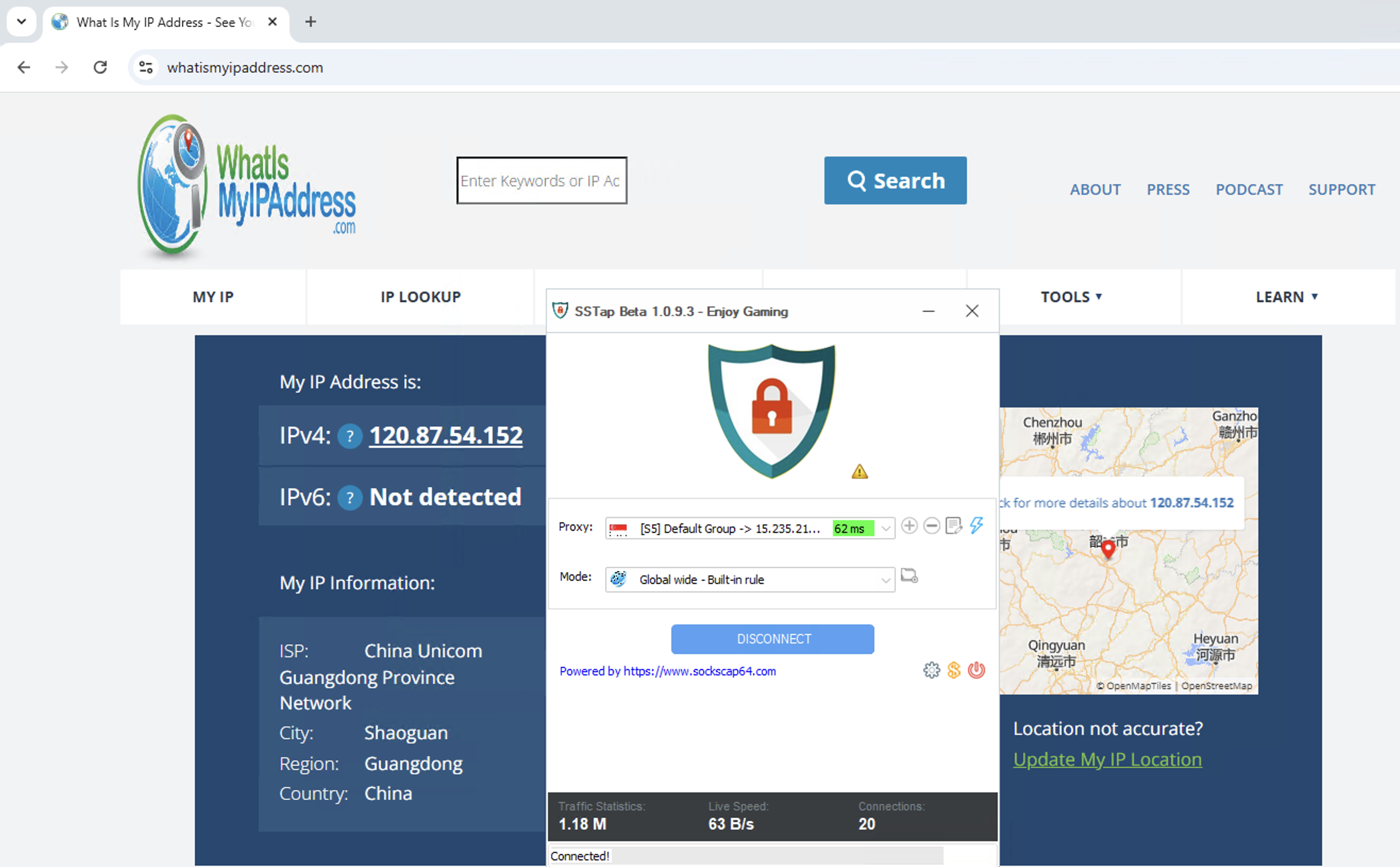
Finally, click CONNECT.
- Visit https://whatismyipaddress.com/ to check the result. If your IP matches the IP on our website, it’s successful.
Shadowrocket
Used to set up a proxy for mobile phones.
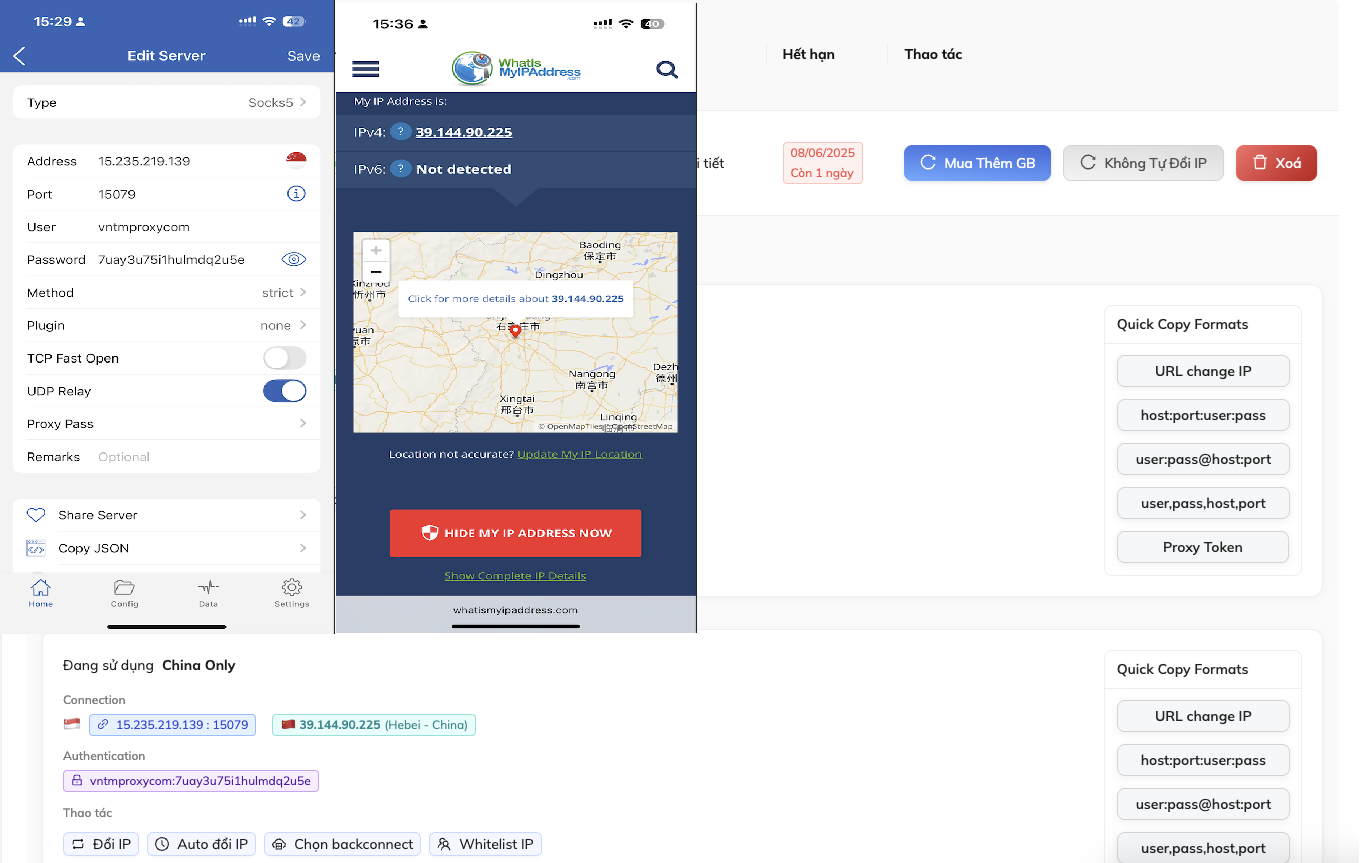
Download:After installing, open the app. Click the + icon in the top right corner and add the proxy info as shown below, then click Save.
Select the Proxy you just added and tap the Connect button.
Visit https://whatismyipaddress.com/ to check the result. If your IP matches the IP on our website, it’s successful.
FoxyProxy
Used to set up a proxy for browsers (Chrome, FireFox).
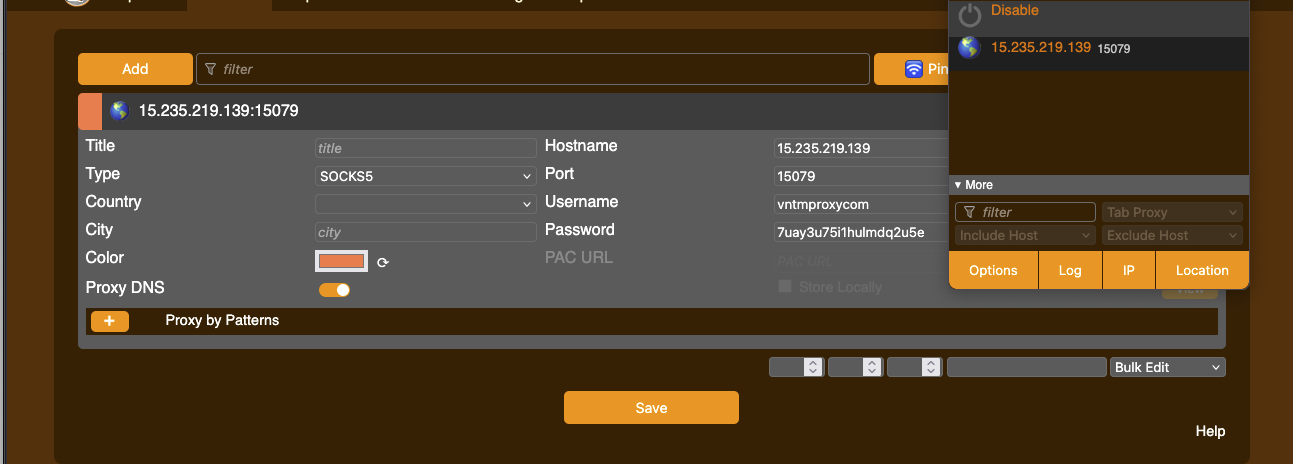
Download:After installing, you’ll see the FoxyProxy icon at the top right of your screen.
Click it, then select Option ⇒ Proxies ⇒ Add.
Enter the Proxy info as shown below and click Save. Finally, in the top right panel of FoxyProxy, select the IP you just added.
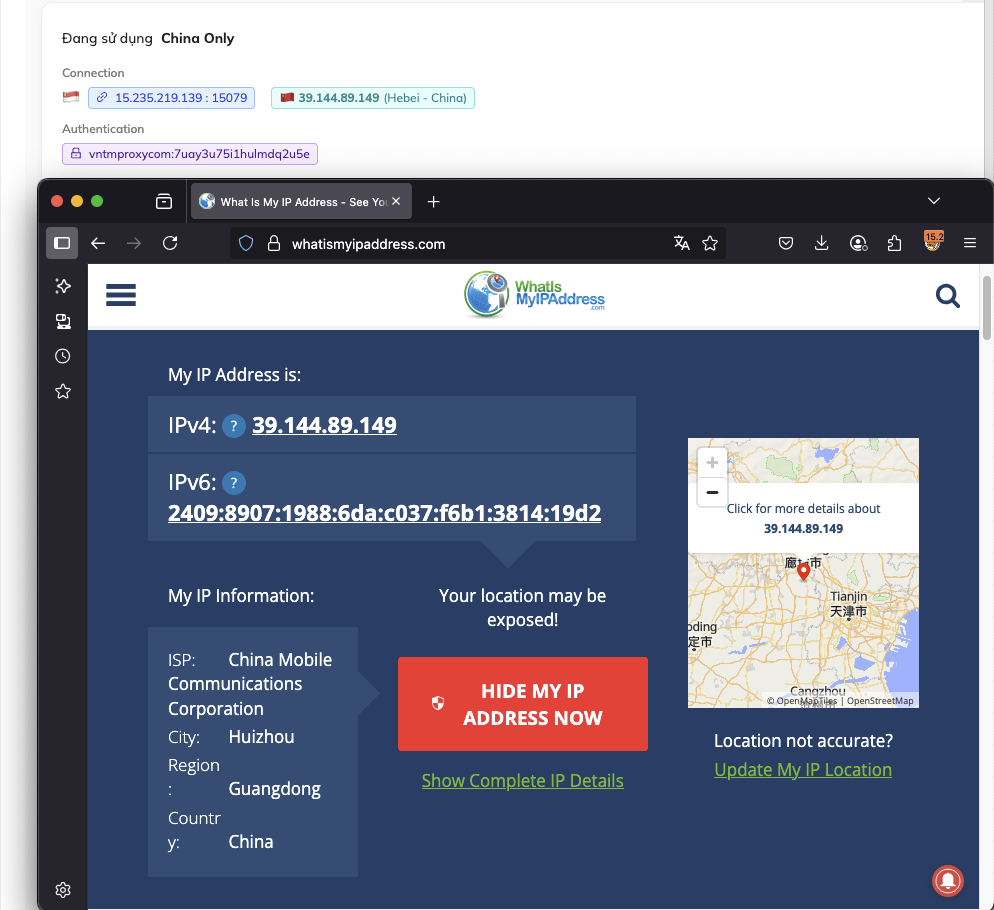
Visit https://whatismyipaddress.com/ to check the result. If your IP matches the IP on our website, it’s successful.
ADSPower
- Used to manage multiple profiles and accounts for various platforms.
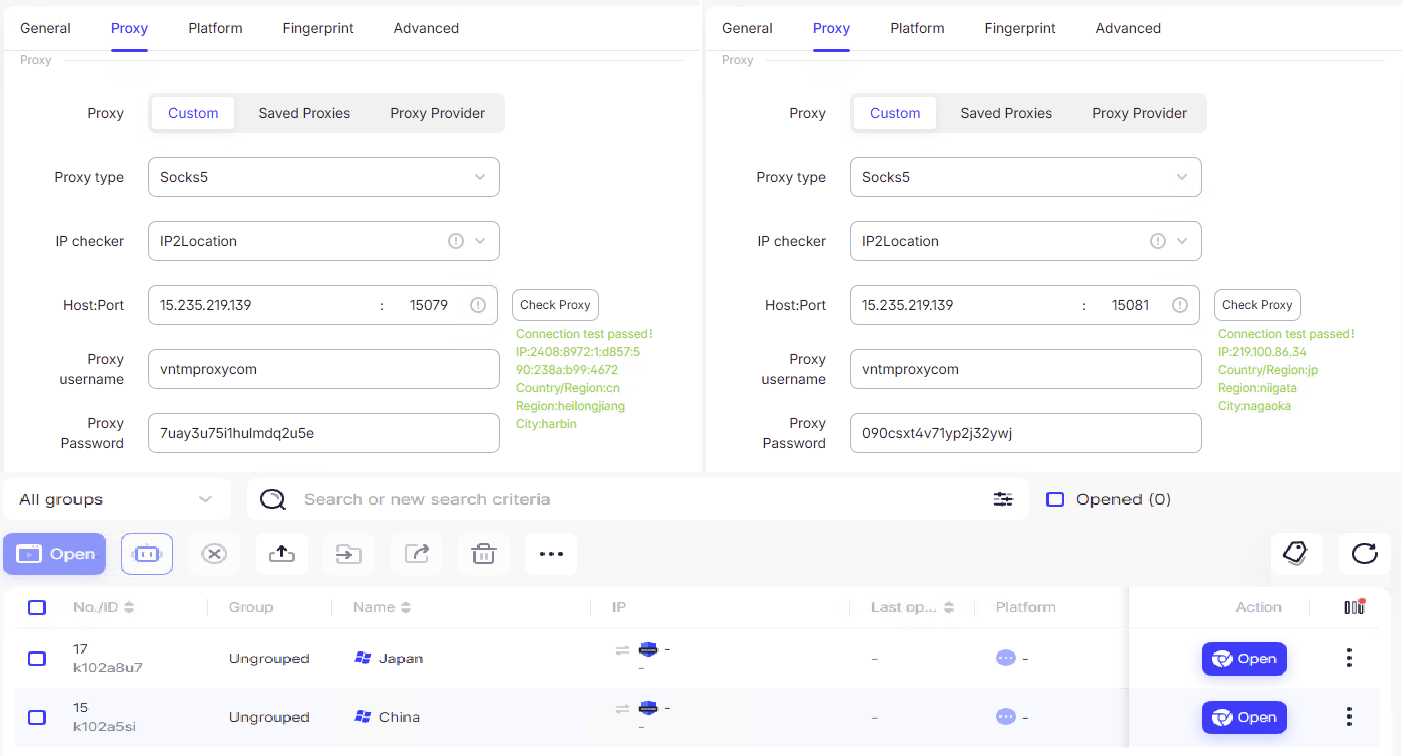
After installation, open the software. Click New Profile ⇒ Proxy.
Enter the Proxy info as shown below and complete other settings. Then click OK.
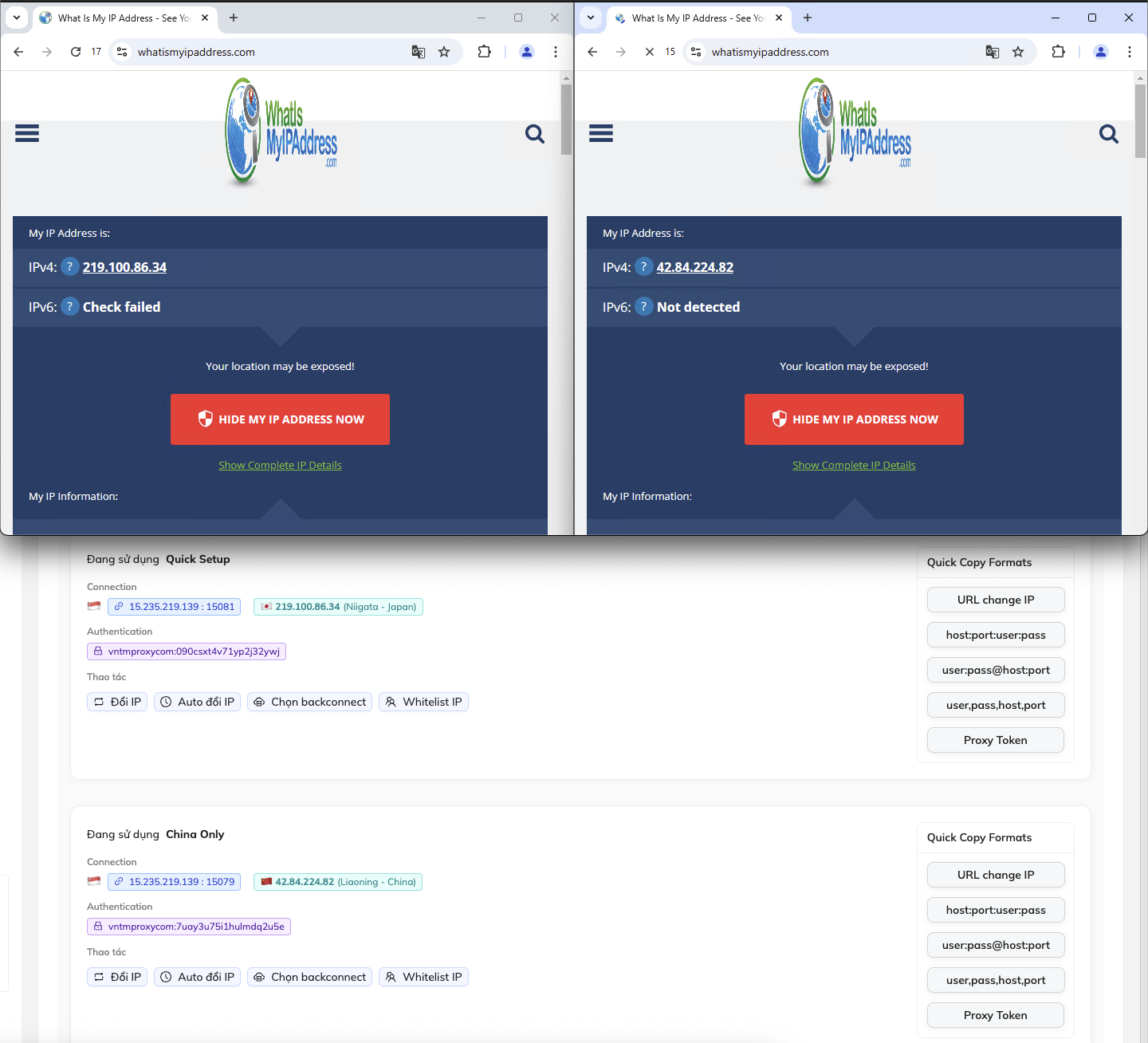
Visit https://whatismyipaddress.com/ to check the result. If your IP matches the IP on our website, it’s successful.
Hidemium
- Helps you create and manage mass online accounts (Facebook, eBay, Amazon, Etsy, Coin/Airdrop, etc.) on the same computer.
Download and extract the software suitable for your operating system below
After downloading, run the installation file and follow the simple steps like installing other software. Create an account and log in to use.
After logging in, you will see the interface below.
Click “(+) Add Profile” to add a new Profile.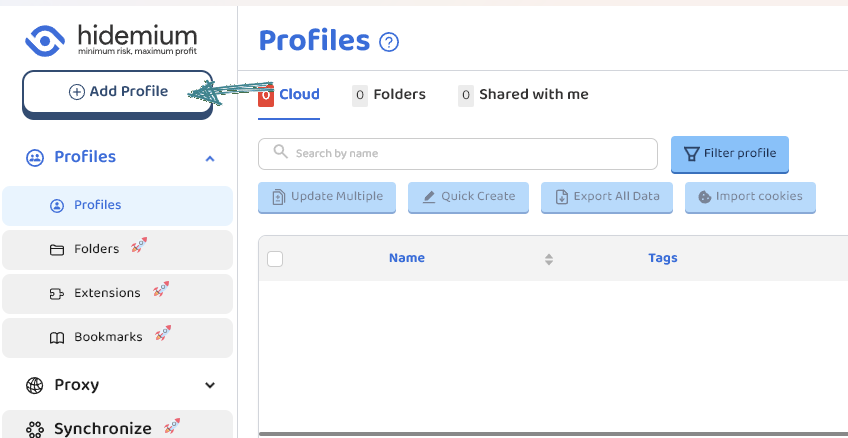 Customize the parameters to fit your usage needs. Since this is a proxy usage guide, I will skip directly to that section.
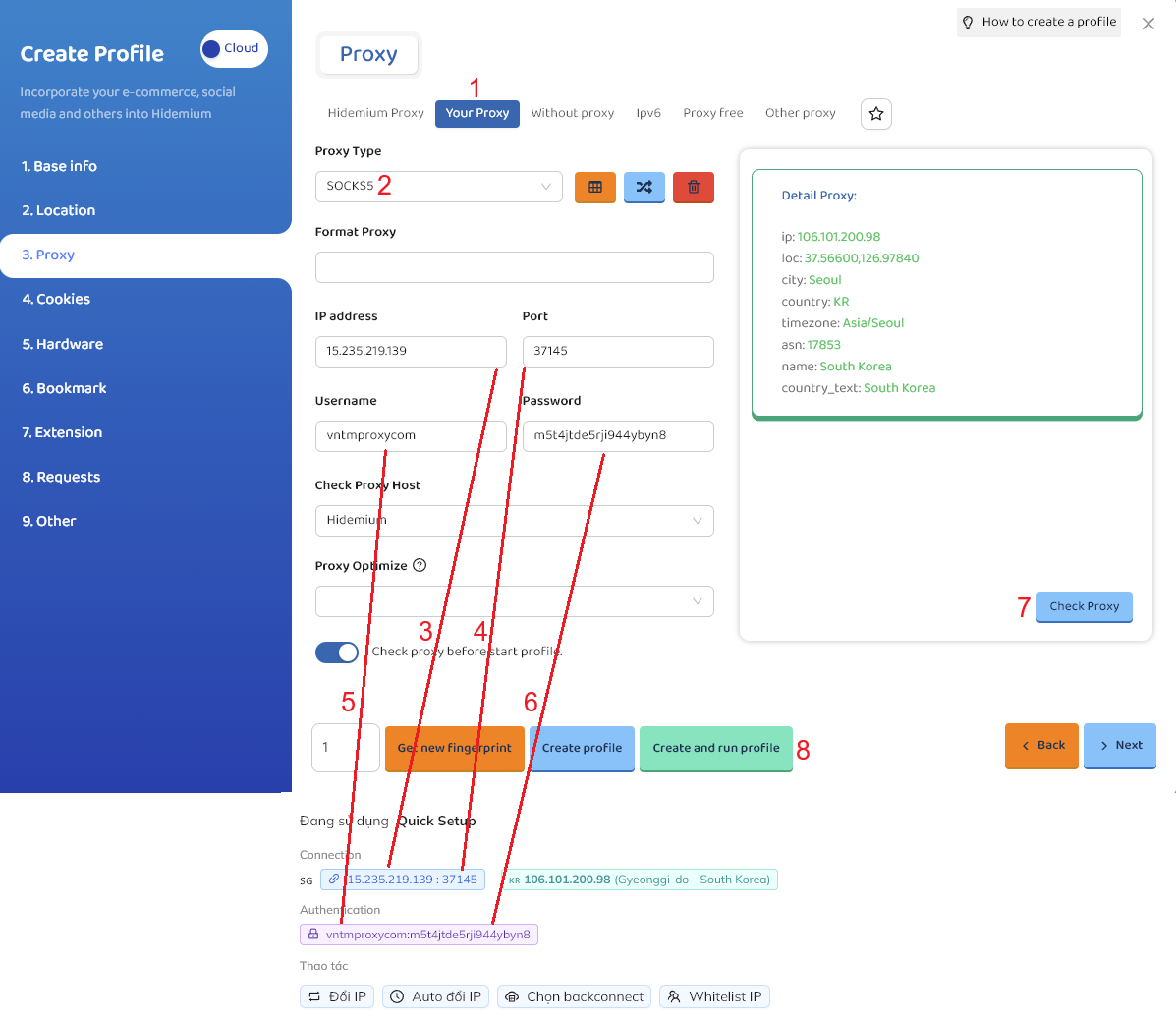
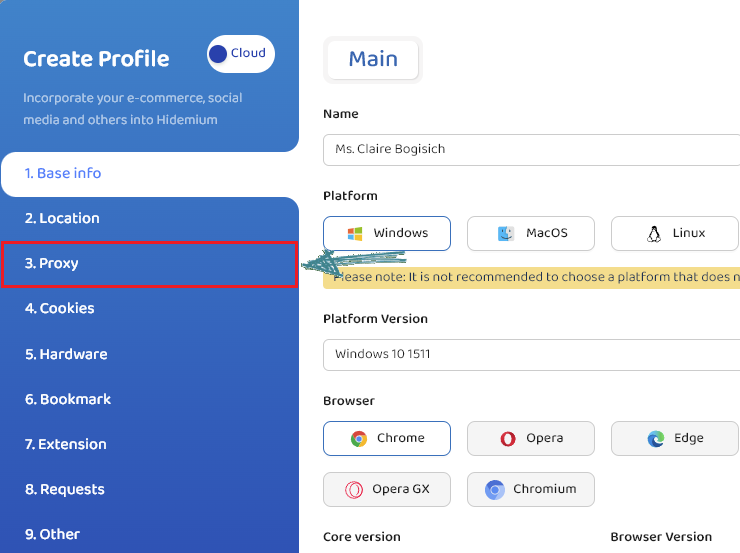 Follow the steps below:
- Select “Your proxy”
- Select “Socks5” or “Http”. Here I choose “Socks5”
- Proxy IP
- Proxy Port
- Proxy Username
- Proxy Password
- After entering full proxy info, click “Check Proxy” to verify
- Select “Create profile” or “Create and run profile”
- Detailed steps are in the image below.
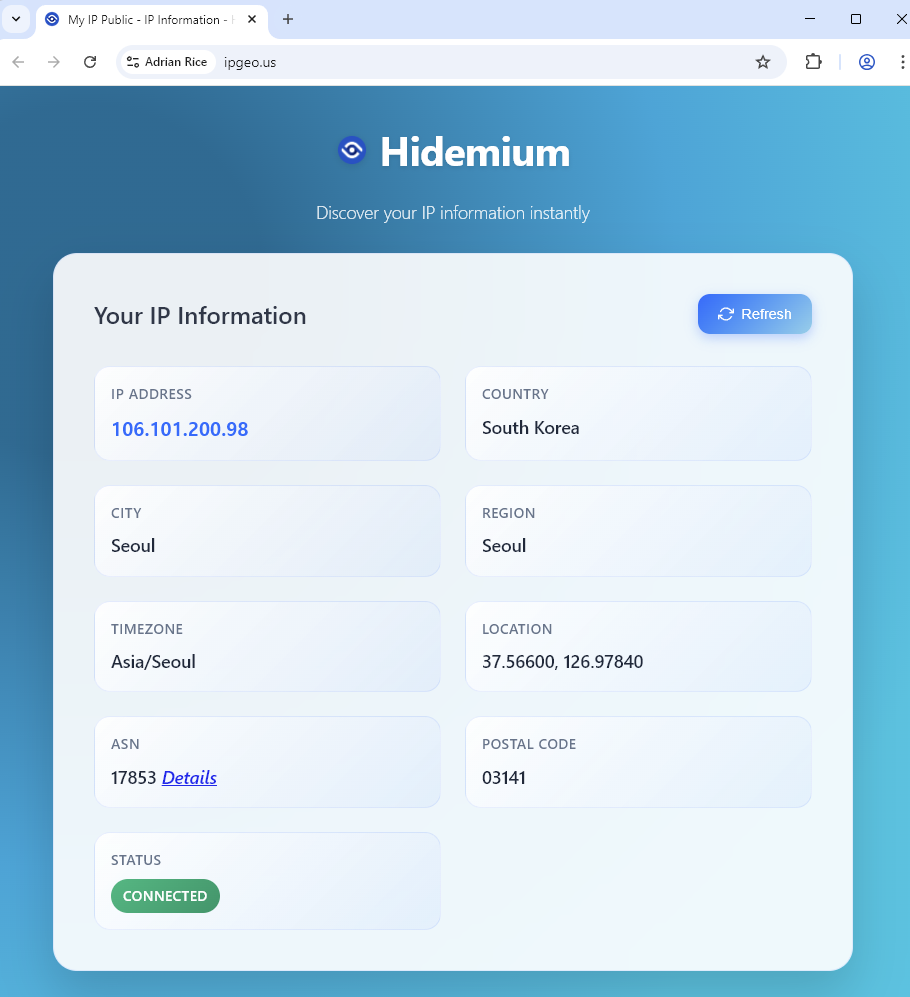
- A result like this means success.
So this guide ends here, see you in the next one!