How to Disable IPv6
If you are experiencing instability issues when using TMProxy or issues related to IPv6 leaking on your connection, you can disable it on your device. To do so, you can follow these instructions:
Window
Window 7, 8.1, 10
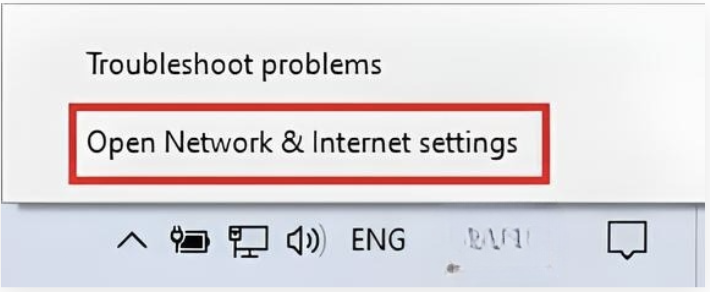
Right-click the network icon in the notification tray and select “Open Network & Internet settings”.
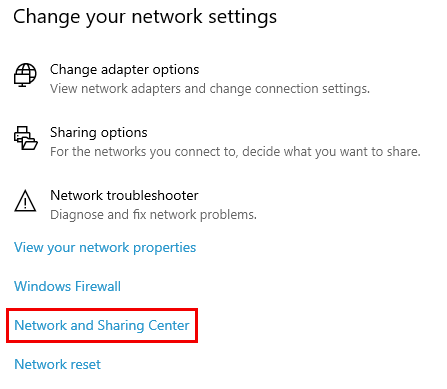
Open “Network and Sharing Center”.
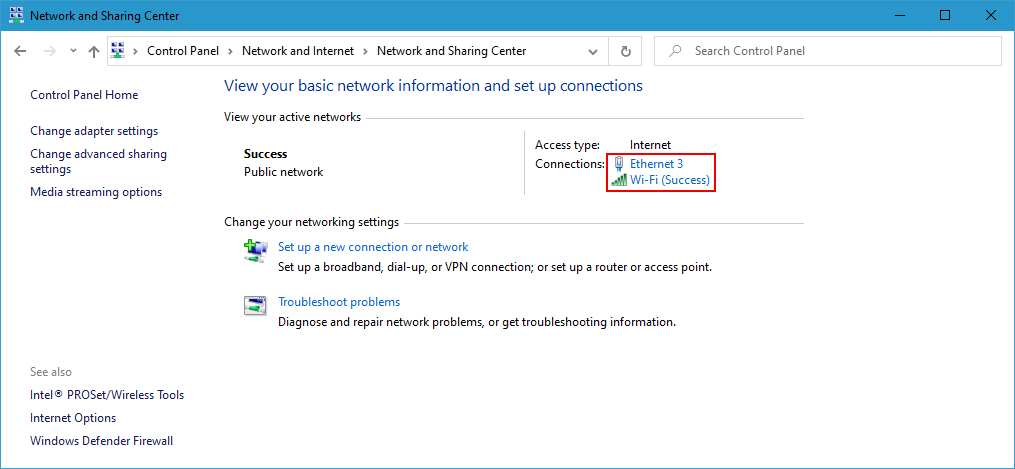
Click on your network adapter.
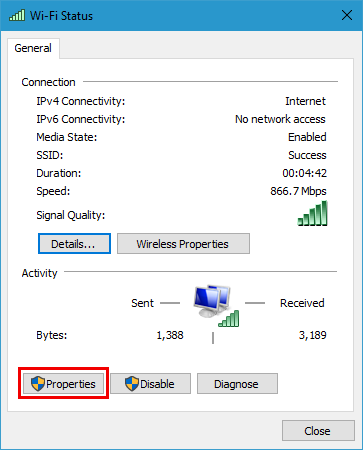
Click on “Properties”.
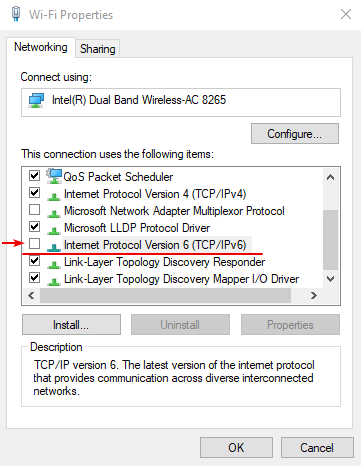
Uncheck “Internet Protocol Version 6 (TCP/IPv6)” on the list. After that, click OK and Close.
Window 11
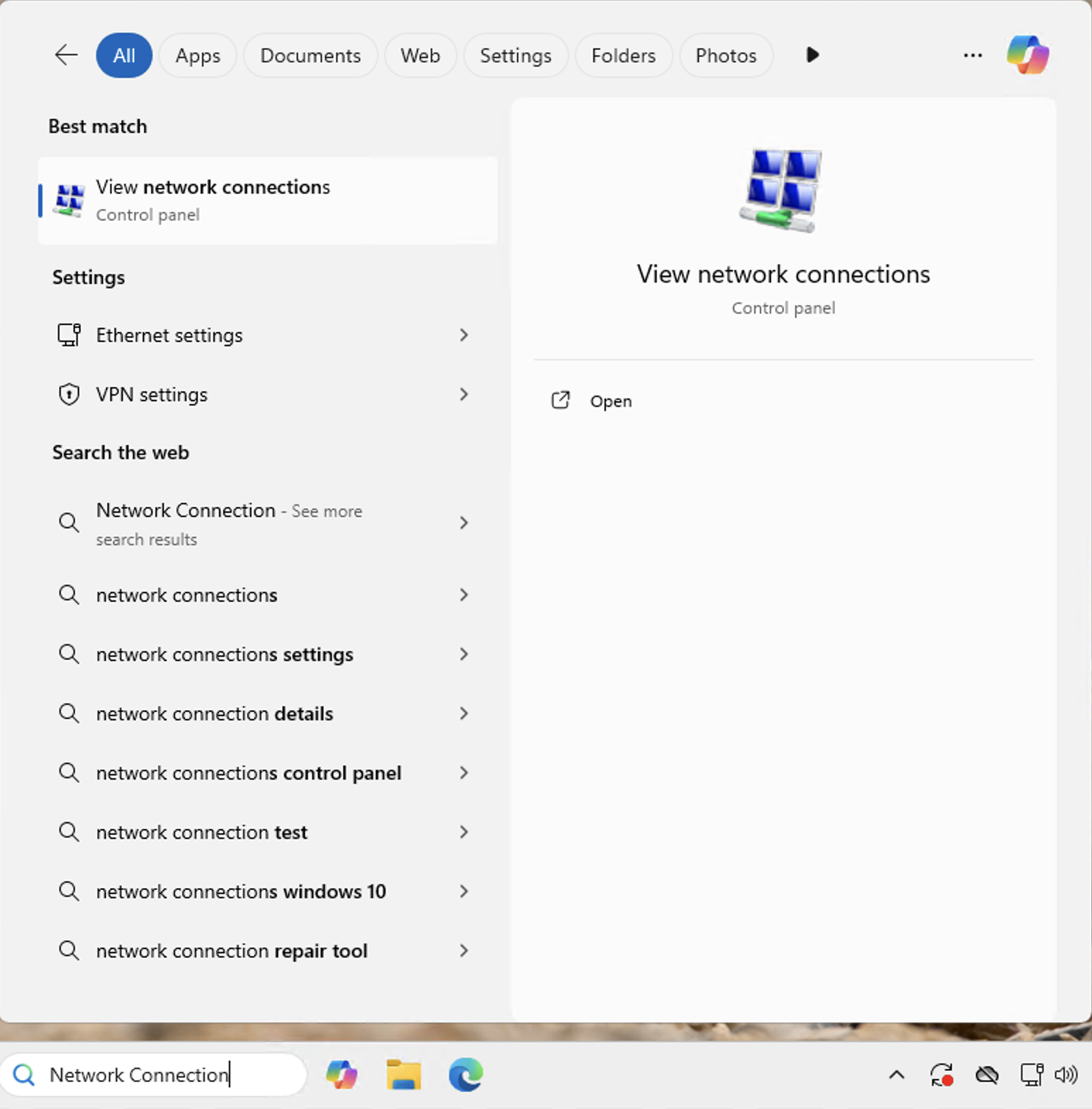
At the bottom of your screen, find and press on the magnifying glass icon.

A window with a search bar will appear. Type in “Network Connection” and open the matching result.
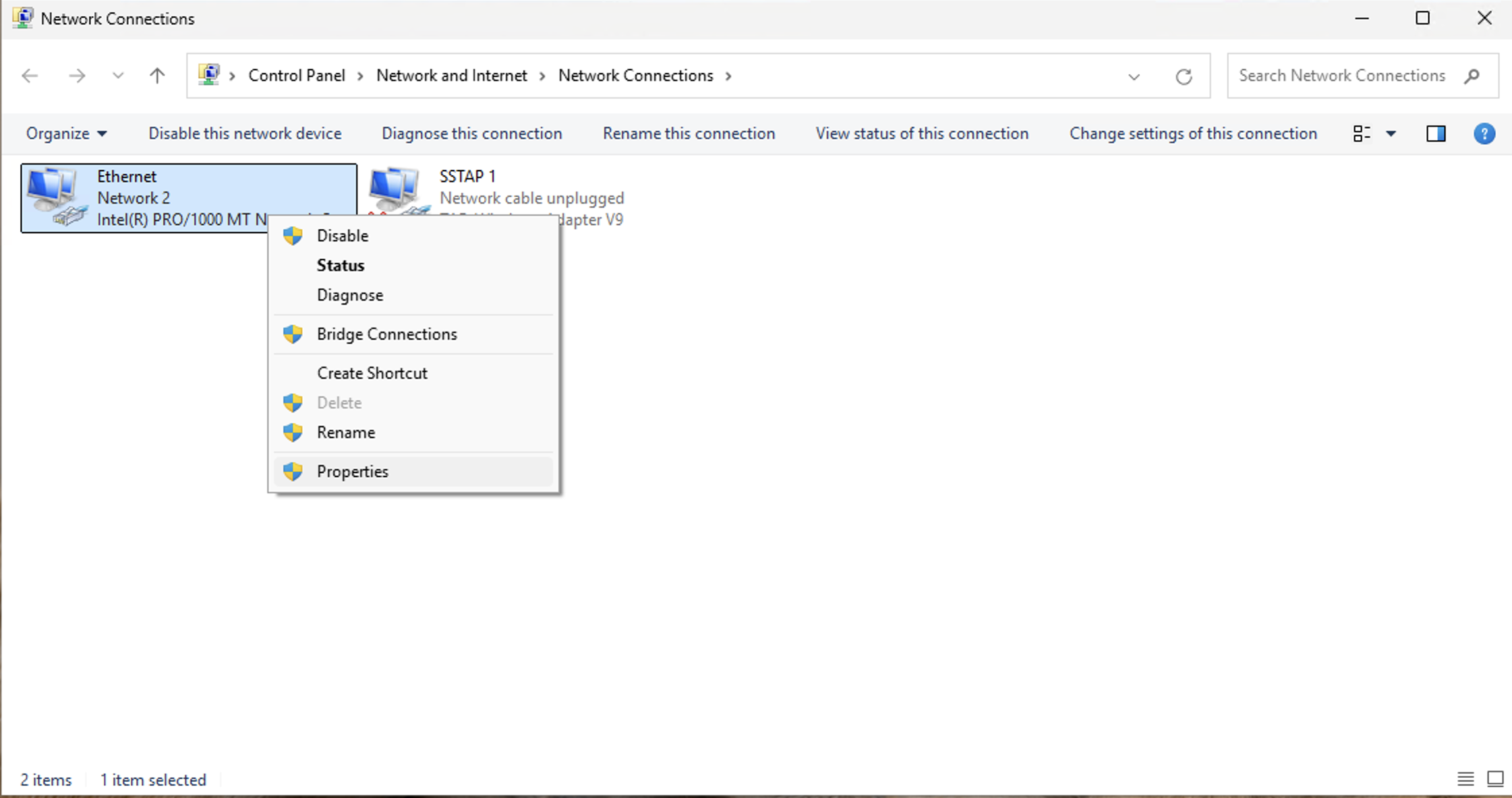
Find your network adapter, and right click on it. Then, press on “Properties”.
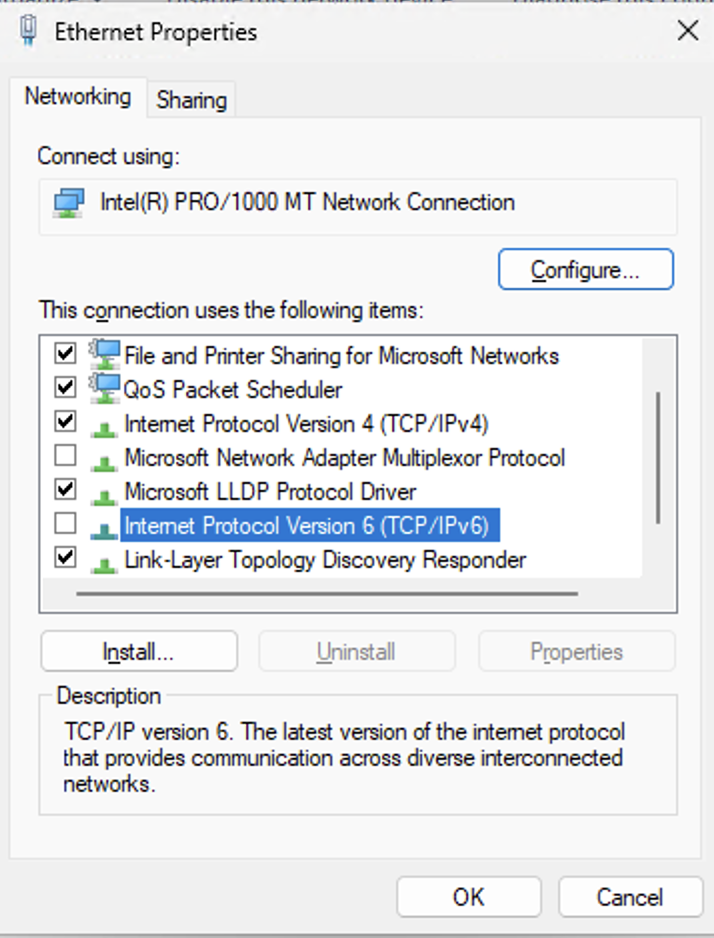
Find and uncheck “Internet Protocol Version 6 (TCP/IPv6)” on the list. After that, click OK and Close.
MacOS
To disable IPv6 on newer OS X versions, you will need to run a command through the Terminal application. Please note that any changes to the network preferences may revert this setting and the command may need to be run again.
Open Finder.
Click on Applications.
Click on the Utilities Folder.
Double Click on the Terminal app.
Run the following command in the terminal window: sudo networksetup -listallnetworkservices This will list all of your network interfaces and their names.
Identify the network interface you are using, most commonly Ethernet or Wi-Fi. Use the following command in the terminal window to disable IPv6 on that interface. Please note that you may have to use quote marks to envelope the interface name. A few examples:sudo networksetup -setv6off Ethernetsudo networksetup -setv6off Wi-Fi
You will be prompted to enter your OS X administrator password. Afterwards, IPv6 will be disabled.
While usually not necessary, if you wish to re-enable IPv6 on your device, you can simply run this command in the terminal:sudo networksetup -setv6automatic Wi-Fisudo networksetup -setv6automatic Ethernet