Guide to Changing IP with Shadowrocket Software
What is Shadowrocket?
Shadowrocket is a powerful VPN application for mobile devices, designed to help you browse the web faster, more securely, and privately.
Key Features of Shadowrocket:
- Powerful proxy application: Shadowrocket acts as a proxy application, helping you analyze and adjust web traffic on your device.
- Security and anonymity: This application encrypts your browsing data and redirects traffic through proxy servers, helping to protect your privacy and bypass internet censorship.
- Access blocked content: Shadowrocket allows you to access websites that are blocked or geographically restricted by changing your IP location.
- Increased access speed: This application can help you connect to the network faster and more stably by using high-speed proxy servers and DNS caching features.
- Easy to use: Shadowrocket has a friendly and easy-to-use interface, allowing you to easily configure and manage proxy servers.
- Support for multiple VPN protocols: Shadowrocket supports various VPN protocols such as Shadowsocks, V2Ray, and OpenVPN, allowing you to choose the protocol that suits your needs.
Video Guide to Changing IP with Shadowrocket
Image Guide to Changing IP with Shadowrocket
Download and Install
 |  |
|---|
Guide to using Shadowrocket to change IP
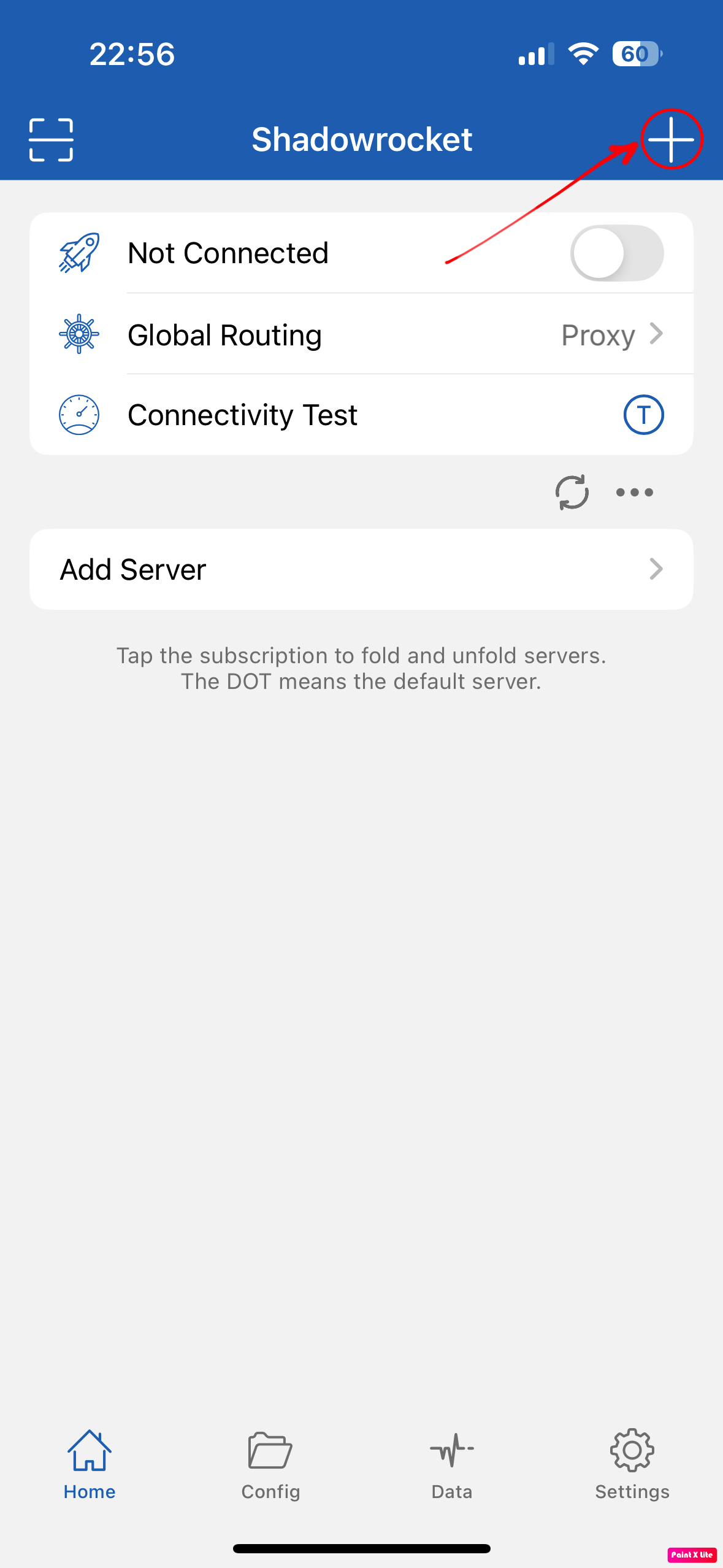
- After installation is complete, you will see the interface as below. Click the (+) sign to add a new proxy.
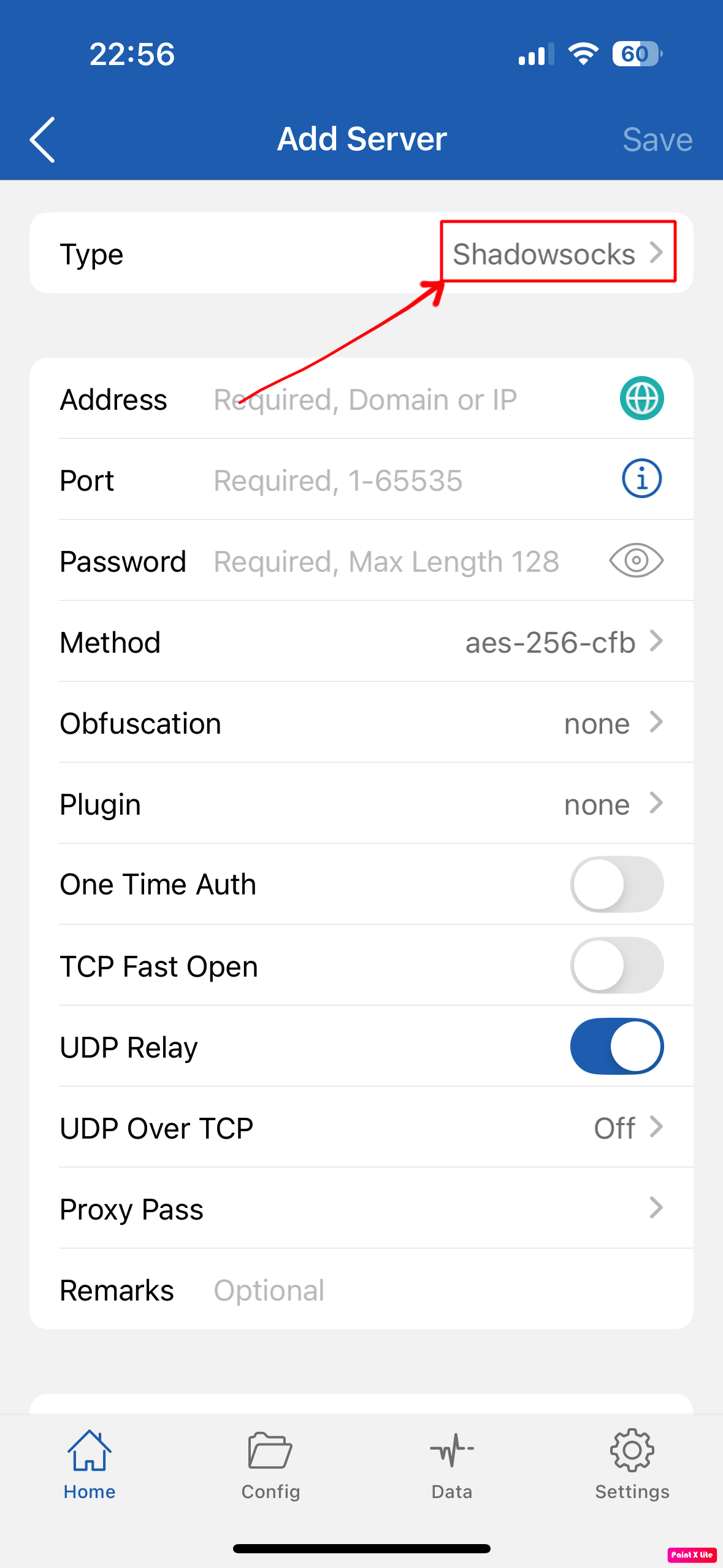
- Continue by clicking on the “Type” box.
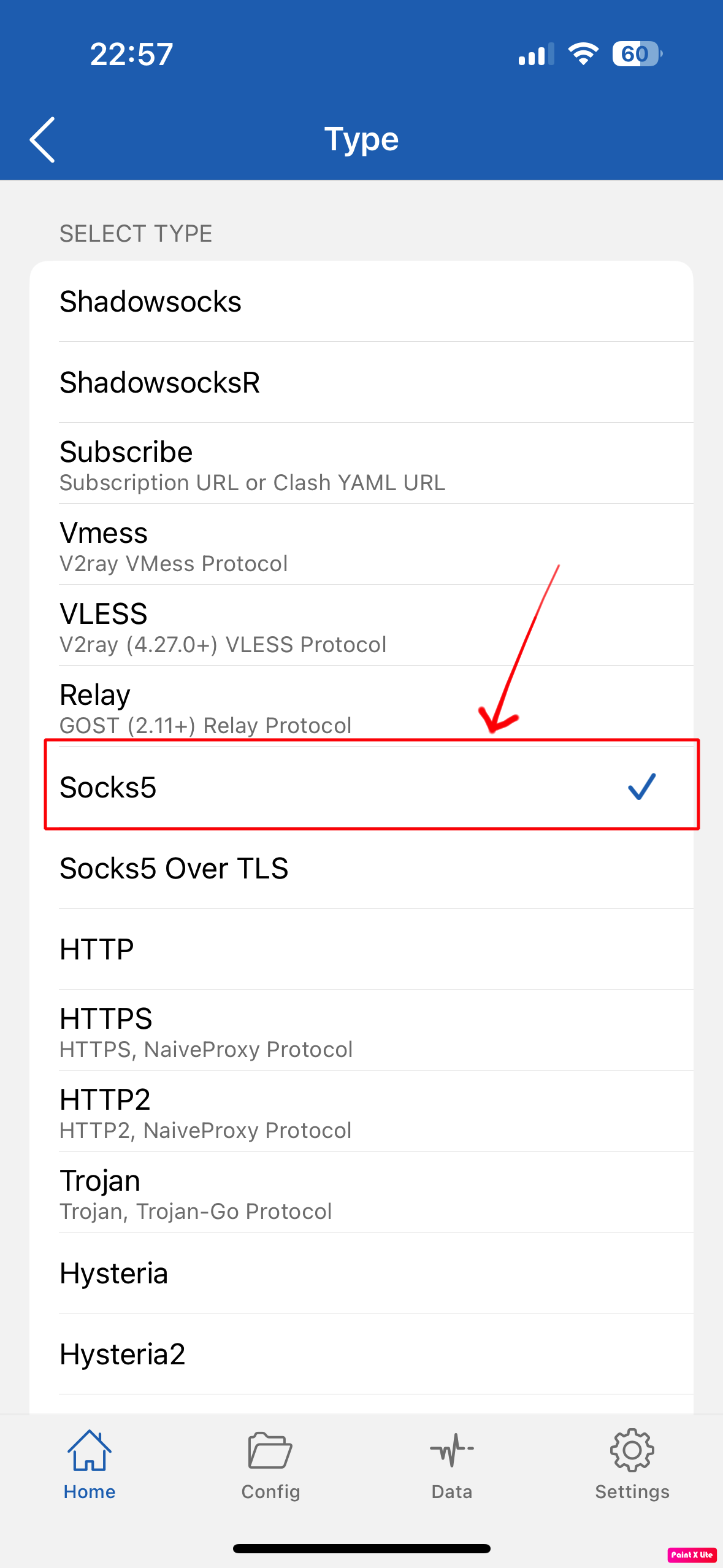
- Then select Socks5 or HTTP depending on your needs. Here I use Socks5.
- Visit TMproxy to get the proxy information.
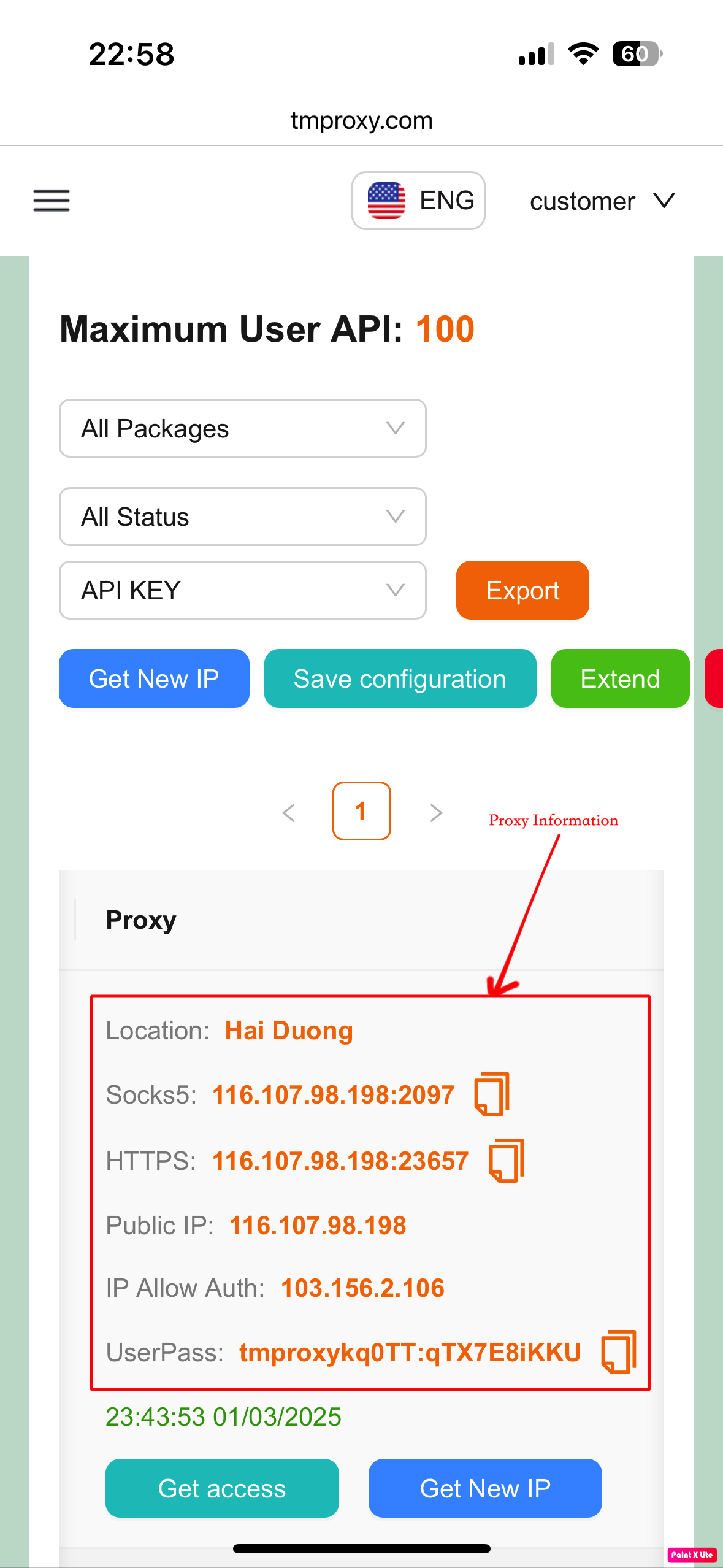
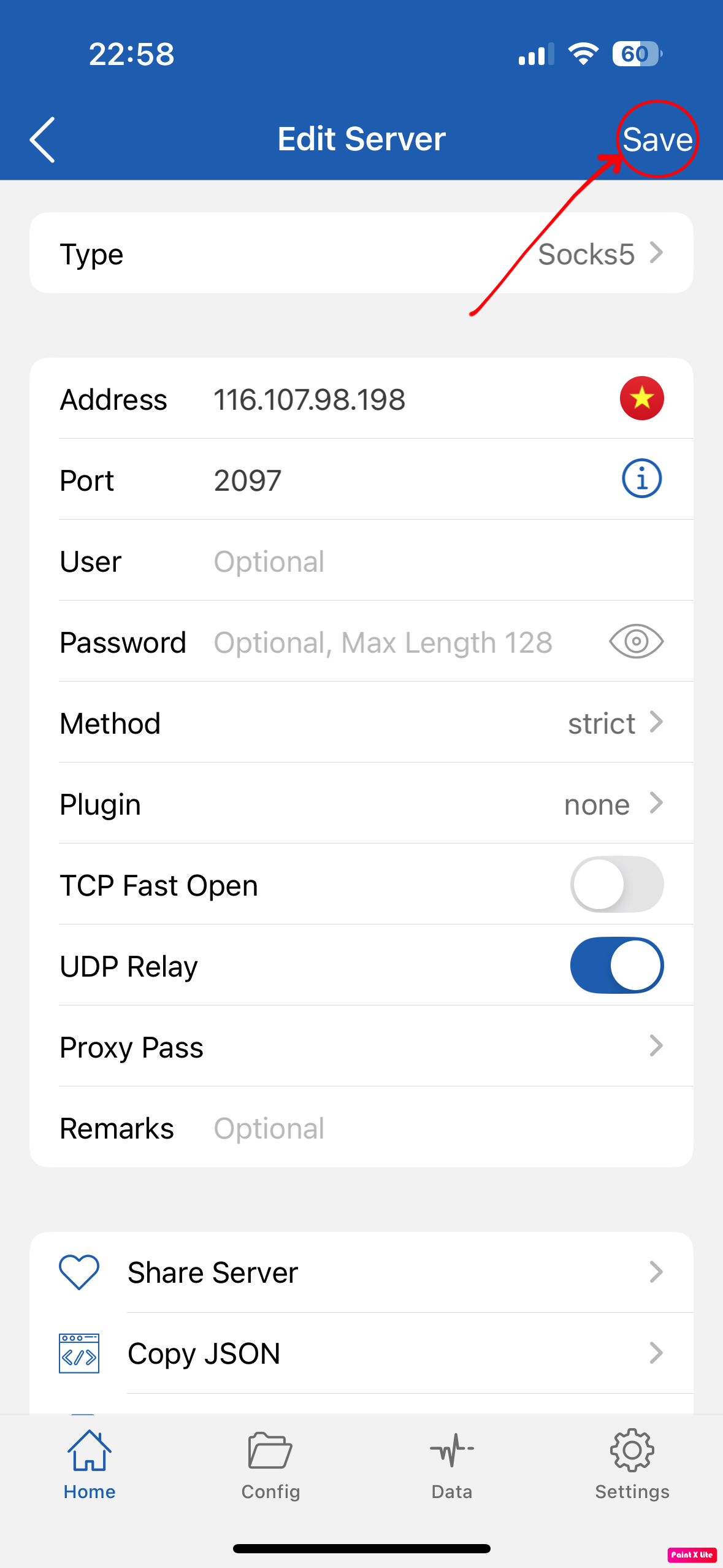
- Paste the proxy information you just obtained into the corresponding boxes. Then click “Save”.
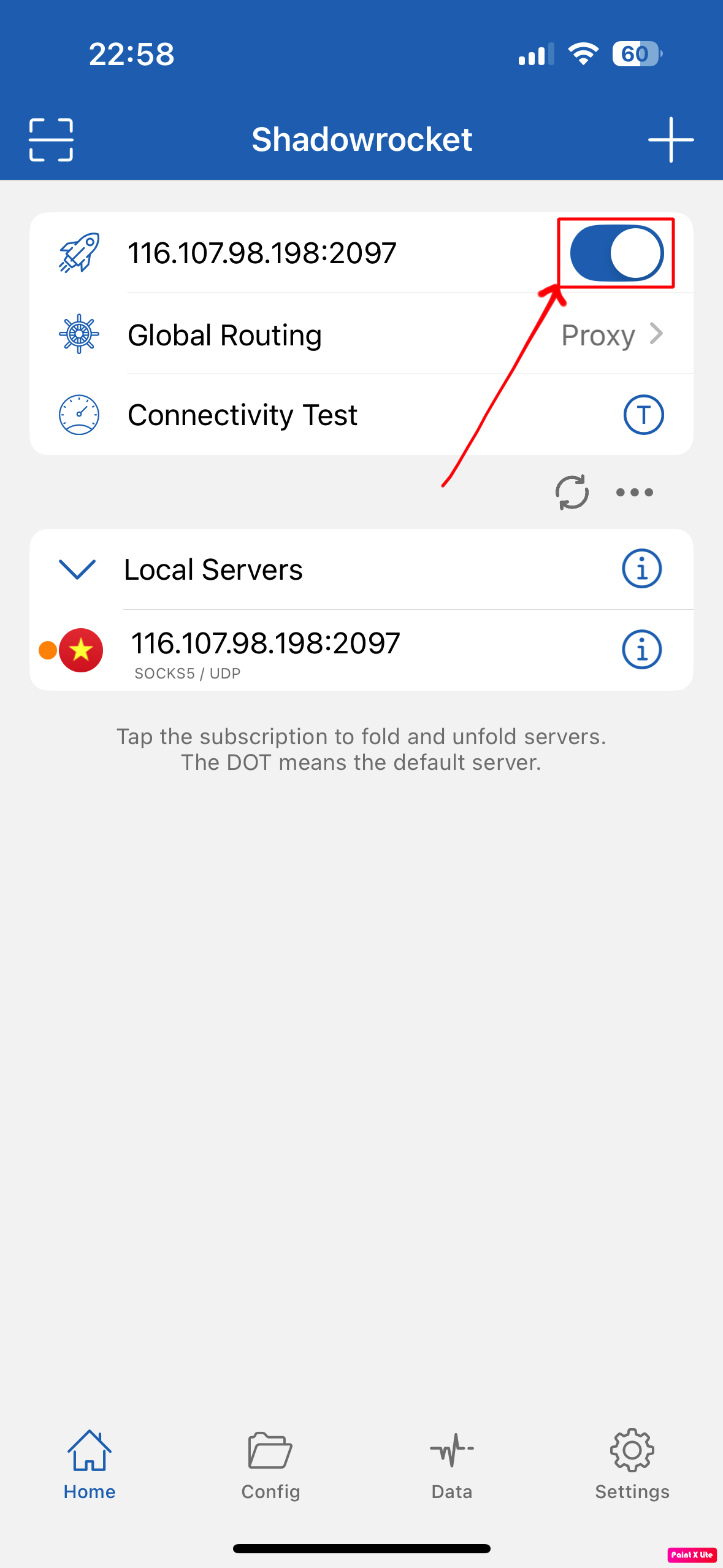
- Click connect to start using.
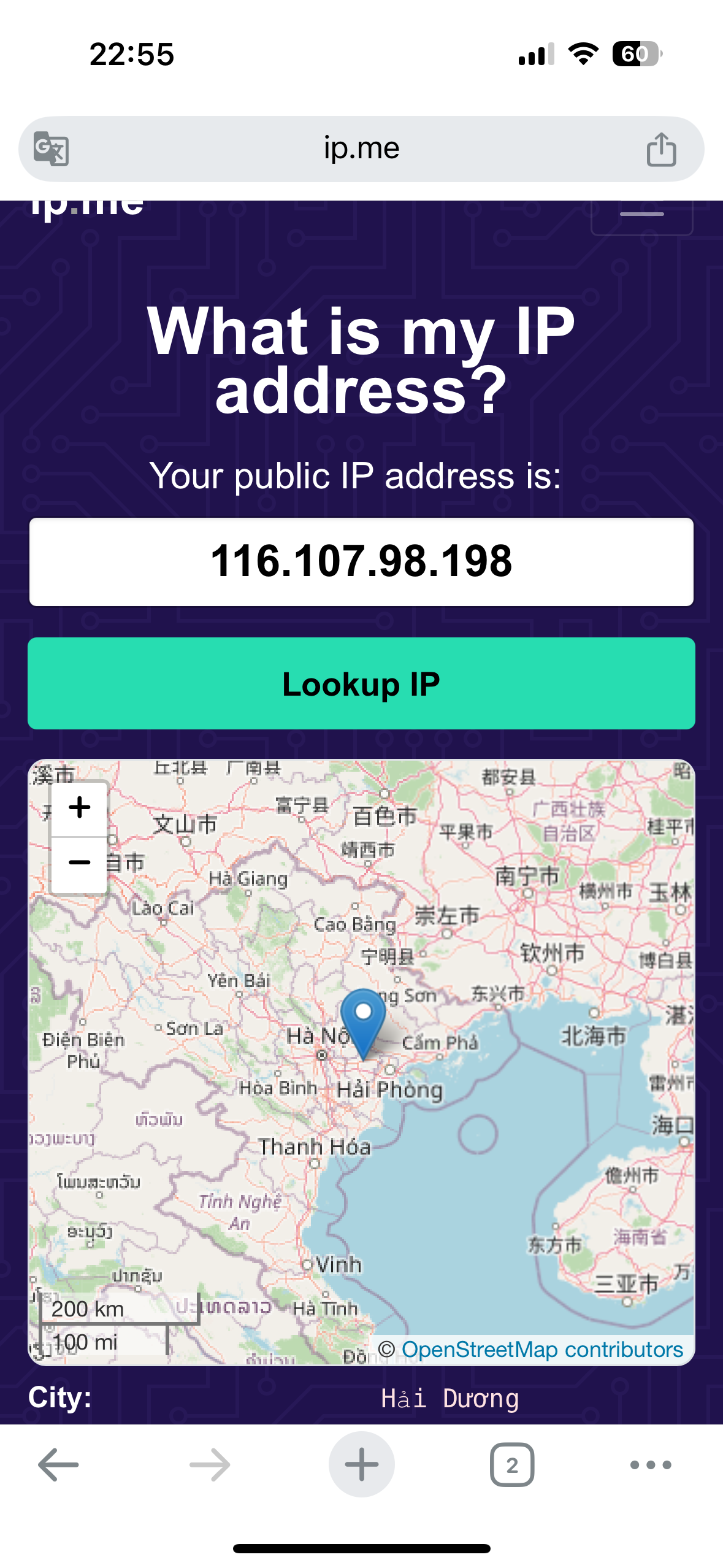
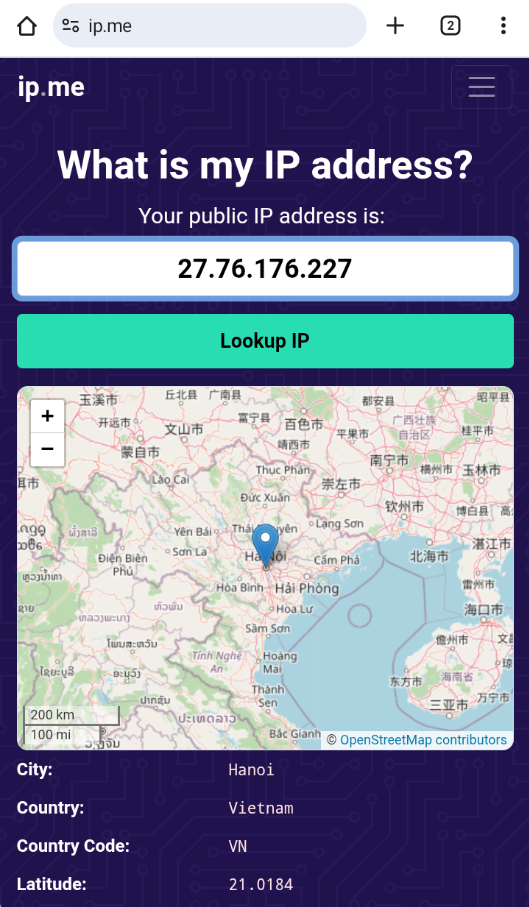
- Visit IP.me to check the result.
Guide to using Shadowrocket to change IP on Android
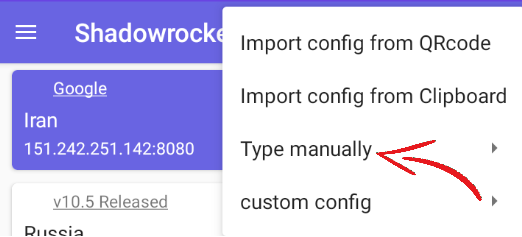
- Tap the (+) sign to add a new proxy
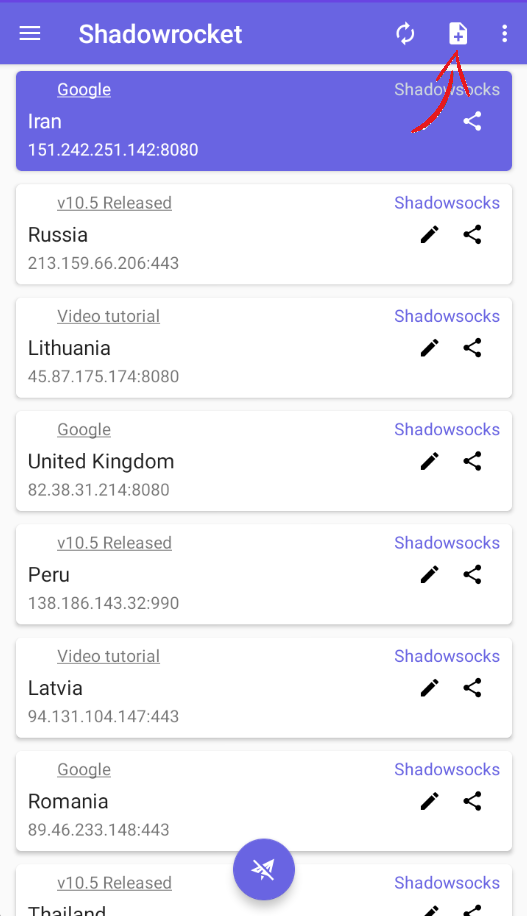
- Select “Type manually”
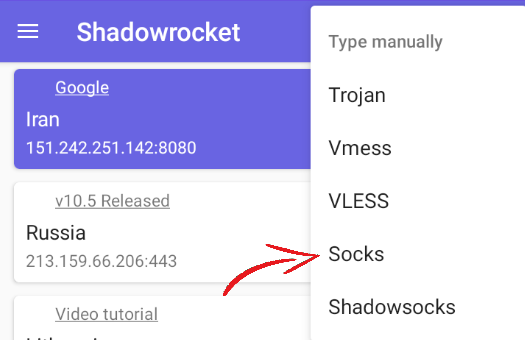
- Select “Socks”
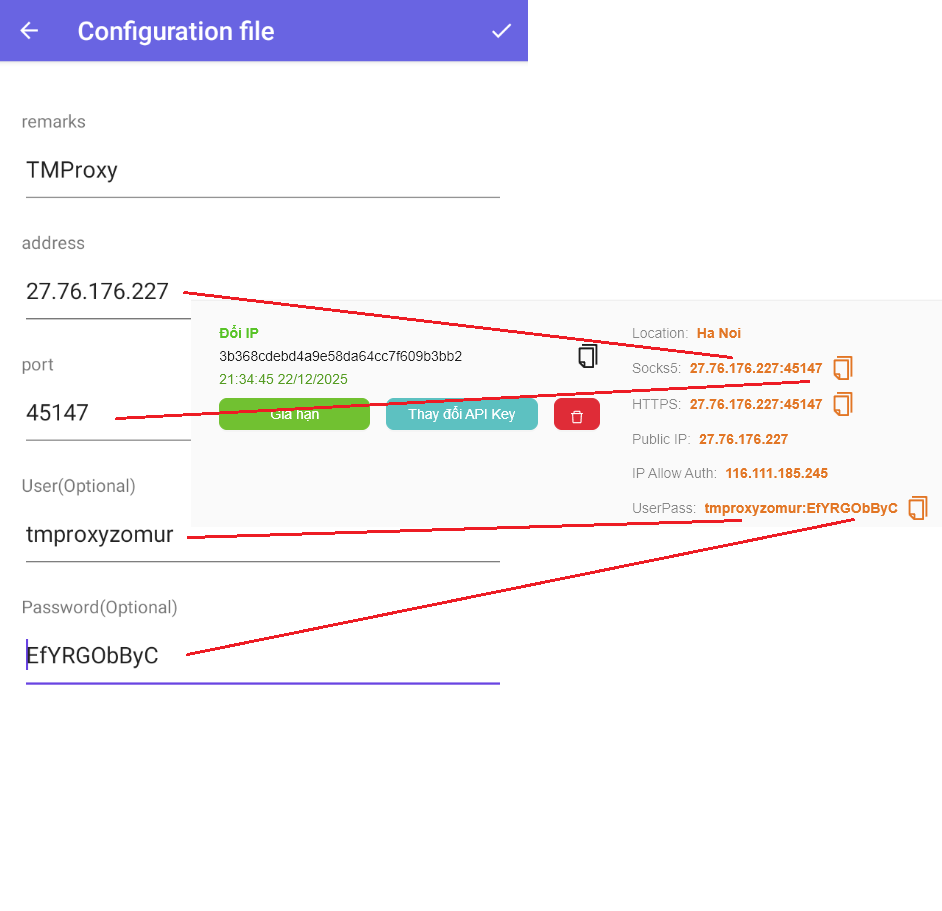
- Enter proxy information into the corresponding fields then save
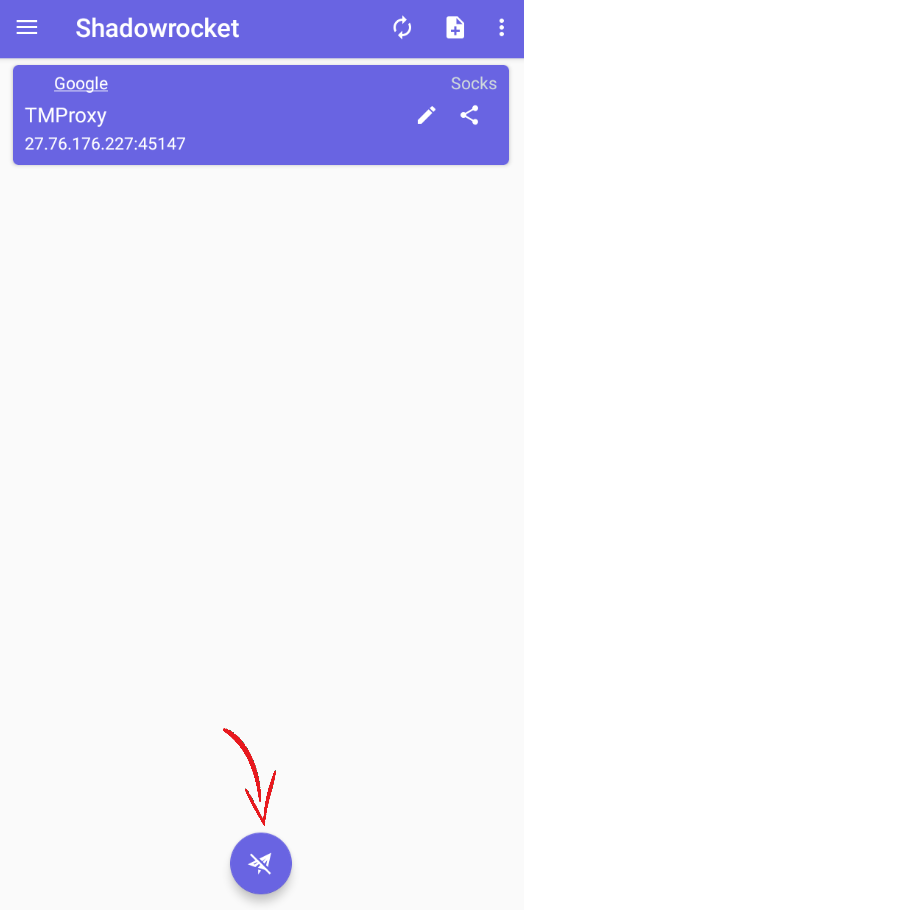
- Tap the connect button
- Visit IP.me to check the result
This is the article Guide to Changing IP with Shadowrocket Software. It is quite simple, you can experience other functions that we have not implemented. Good luck!
In addition, we have many instructions for using http proxy / socks5 on various software and tools. Please click on the link https://docs.tmproxy.com/guide/
Note!
To use the automatic IP change function. You must set up the configuration on the TMProxy Manager software (click here to download the software). See instructions here
Disclaimer:
TMProxy is not affiliated with the developers of Shadowrocket. This guide is for informational purposes only.
Get started with us at:
- website: https://tmproxy.com/
- Fanpage: https://www.facebook.com/TMProxy