How to Auto Change ALGO Proxy by Interval
Hello everyone! This guide will dive deep into the 🕔Auto Change IP feature on the latest ALGO Proxy page.
Note!
The Web App interface may differ slightly from this guide but will not be significantly different.
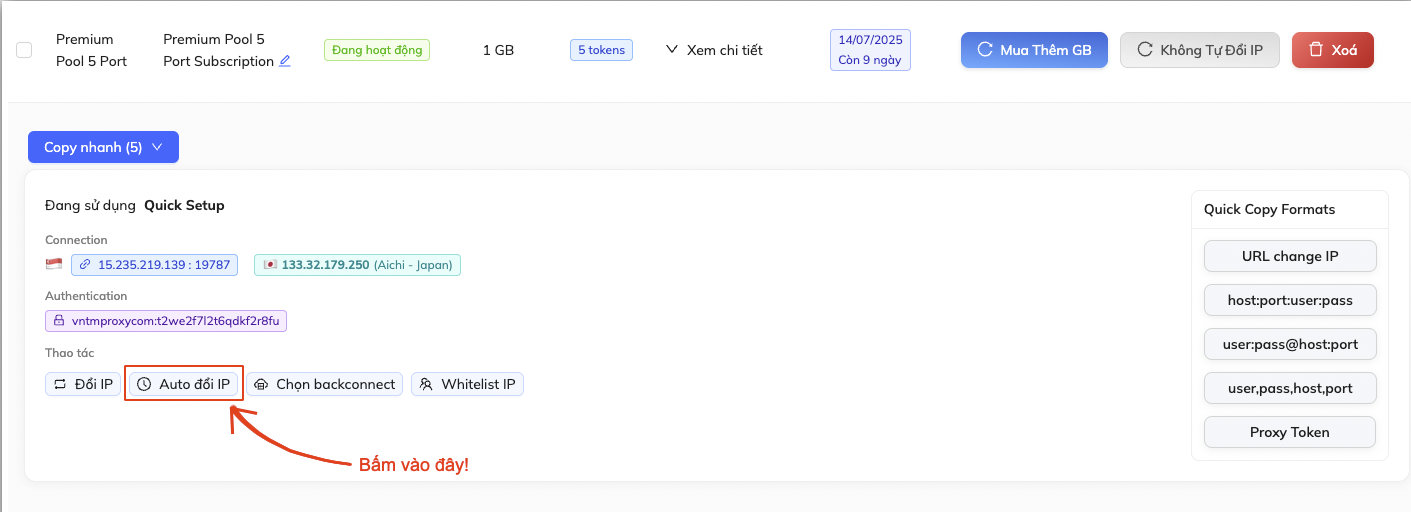
In the Proxy Management section, select the Token you want to configure. Click the 🕔Auto Change IP button.
Then, the AUTO Change IP Profile will appear. The default configuration or when clicking the ⟳ Reset Config button will look like the image below.
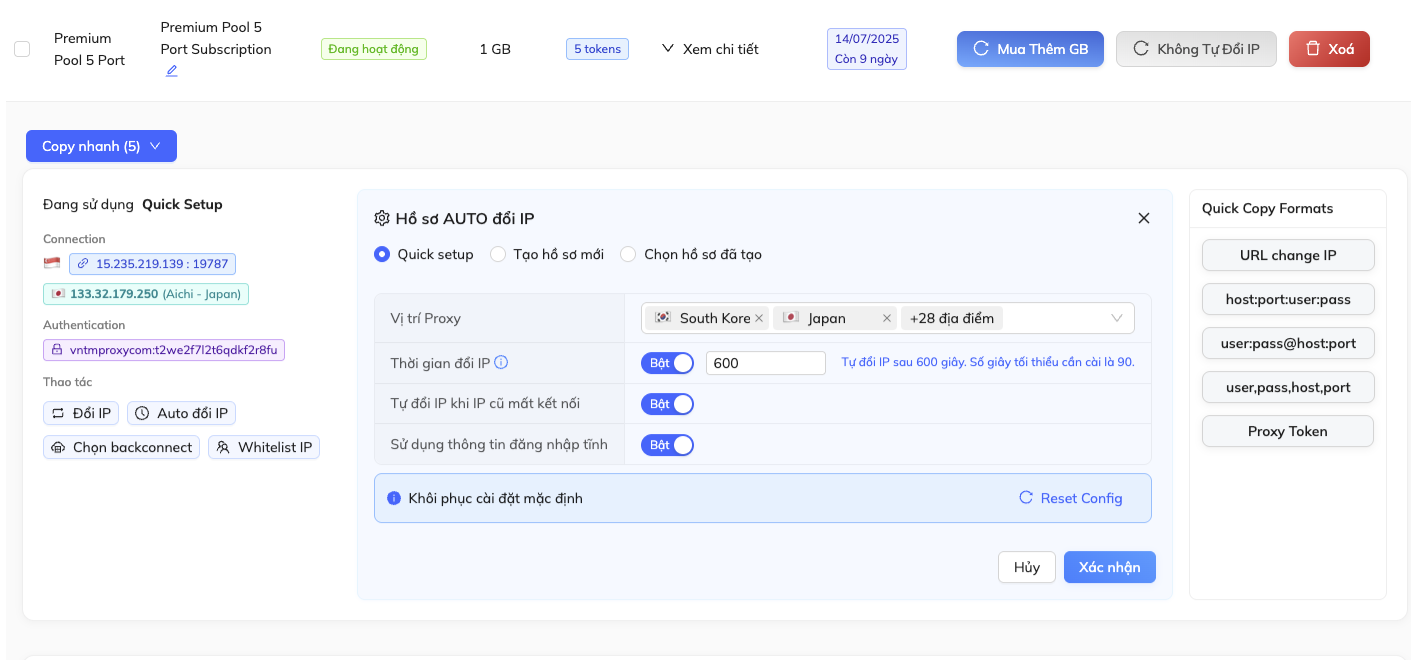
Quick Setup
Used to quickly configure your Proxy Token.
- Proxy Location
Click the ✕ icon next to a Proxy Location to remove that location.
For example, as shown:
🇰🇷 South Korea ✕🇯🇵 Japan ✕Click the empty space to open the list of Proxy Locations.
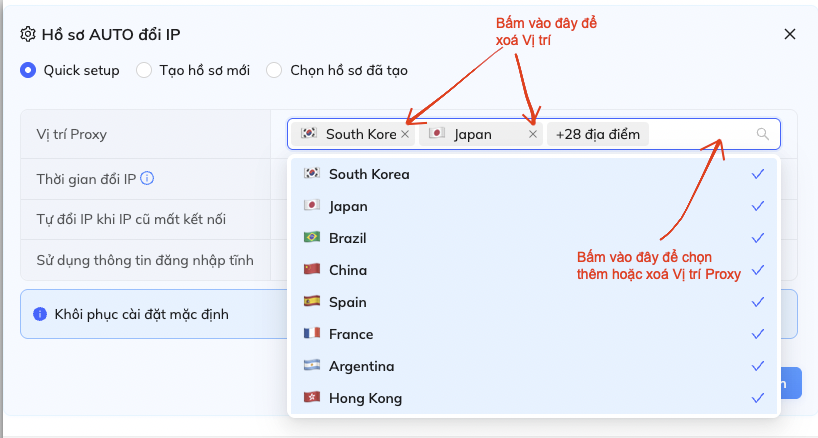
You can click each location to select or deselect as desired.
Blue means selected, white means deselected.
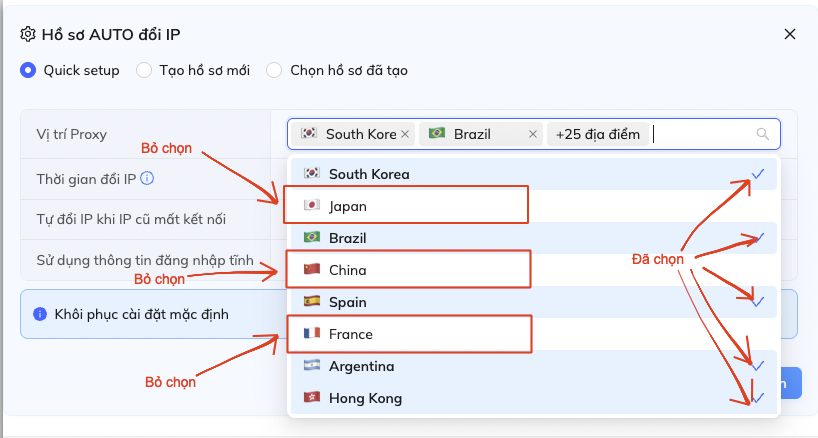
You can also type the name of the Proxy Location to find it faster.
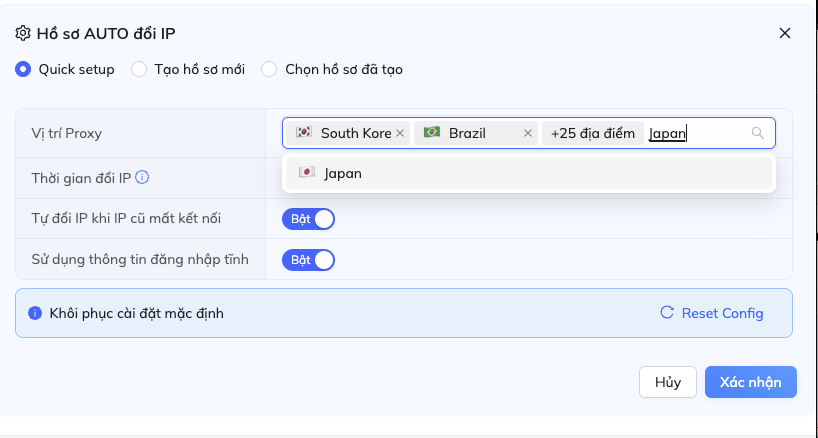
When rotating, your Proxy will use exactly the locations you selected.
- IP Change Interval
- Enter from 90 to 3600 seconds.
- Auto change IP when old IP is disconnected
- When off: If your Proxy IP disconnects, you will also lose connection.
- When on: The Proxy will automatically switch to a new IP to avoid disconnection.
- Use static login credentials
- When off: Each rotation, the Proxy’s username and password will change.
- When on: Each rotation, the Proxy’s username and password will not change.
Create New Profile
- Configuration Name
Enter any name you like, but make it easy to remember.
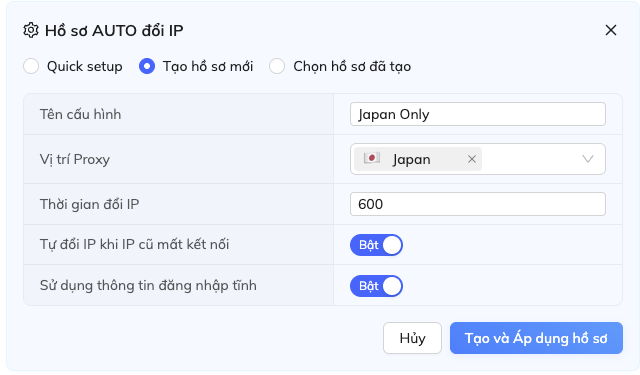
- Proxy Location
- Works the same as
Quick Setup.
- IP Change Interval
- Enter from 90 to 3600 seconds.
- Auto change IP when old IP is disconnected
- When off: If your Proxy IP disconnects, you will also lose connection.
- When on: The Proxy will automatically switch to a new IP to avoid disconnection.
- Use static login credentials
- When off: Each rotation, the Proxy’s username and password will change.
- When on: Each rotation, the Proxy’s username and password will not change.
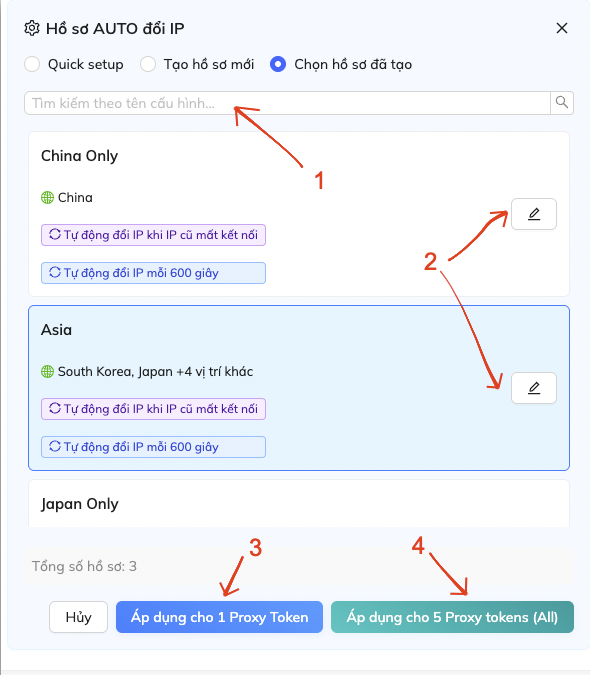
Select Created Profile
- Search by configuration name
- Naming the profile clearly helps you find it easily now.
- Edit profile
- Click the icon to edit an existing profile.
- Apply to 1 Proxy Token
- When selected, your chosen configuration will apply to the current Proxy Token.
- Apply to 5 Proxy Tokens
Apply your chosen configuration to the entire package.
That’s the end of this guide, see you in the next tutorial!